Photoshop Tutorials: Create a Beautiful Sunrise Scene with an Old House |  |
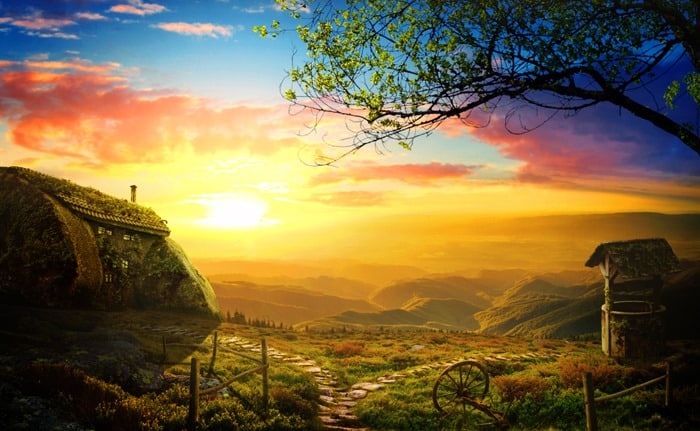
| Create a Beautiful Sunrise Scene with an Old House Posted: 04 Nov 2013 12:00 AM PST Preview of Final Results
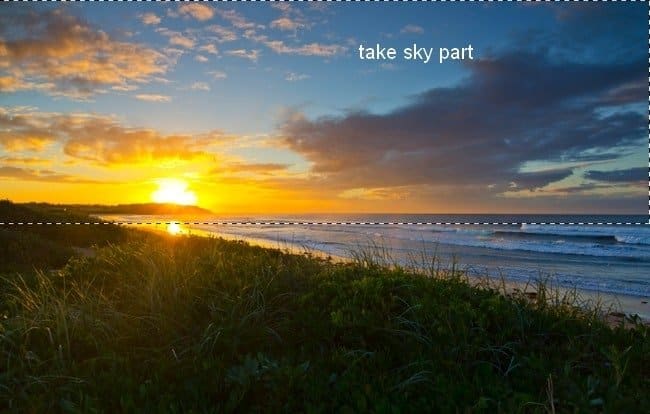
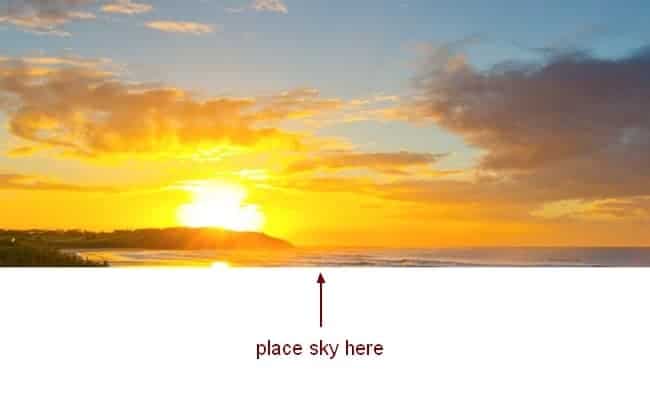
Tutorial ResourcesStep 1Create a new document with size 1300×800 px and fill it with white (or any color you like). Open sky stock. Use Retangular Marquee Tool to make a selection on sky part and use Move Tool (V) to drag it into our white canvas, place it at the top:
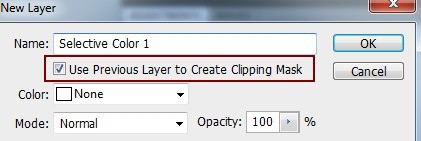
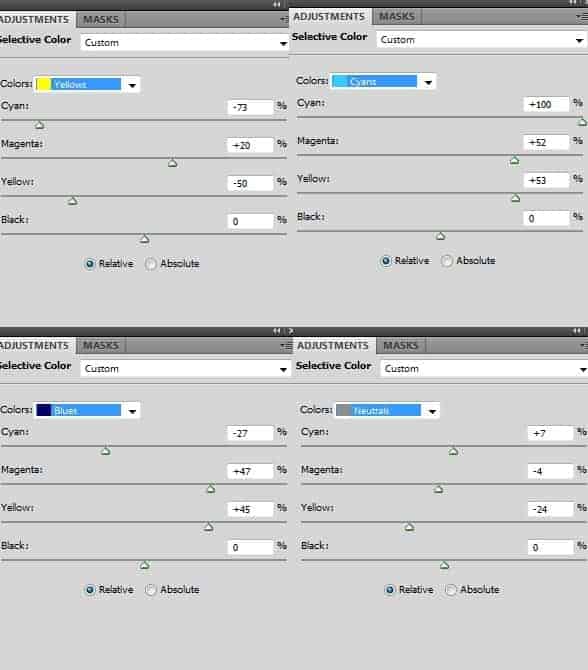
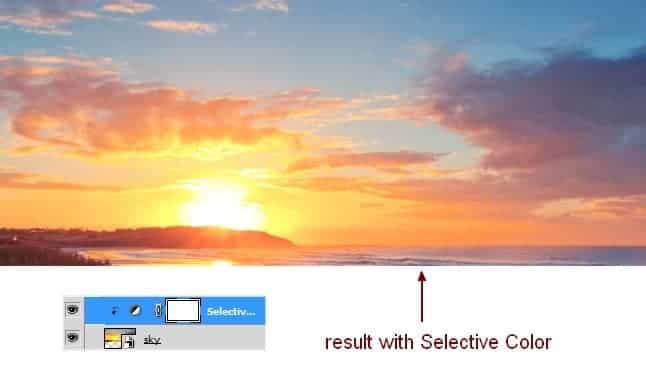
Step 2I use an adjustment layer with Clipping Mask to make colors of the sky richer and more vibrant. On sky layer, go to Layer-New Adjustment Layer-Selective Color:
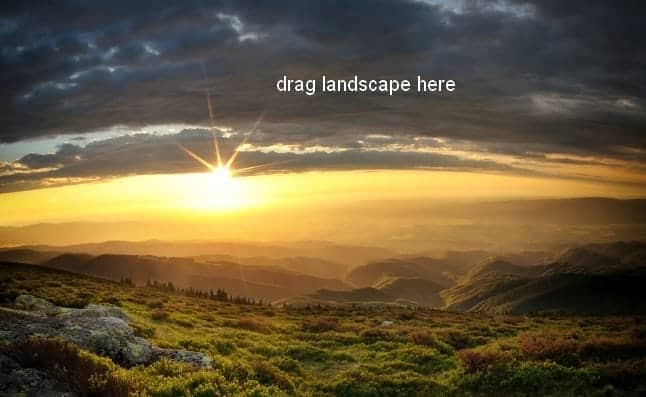
Step 3Drag landscape stock into our picture, convert it to Smart Object and use Cmd/Ctrl+T to resize it:
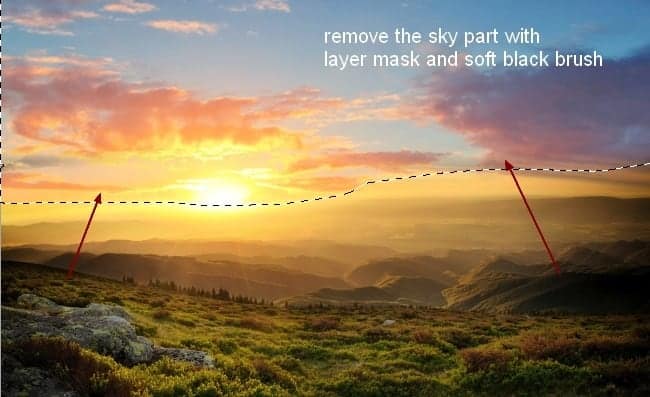
Click the second button at the bottom of Layer Pallete to add mask to landscape layer. Use soft black brush to remove sky of this landscape and blend it with sky in previous step:
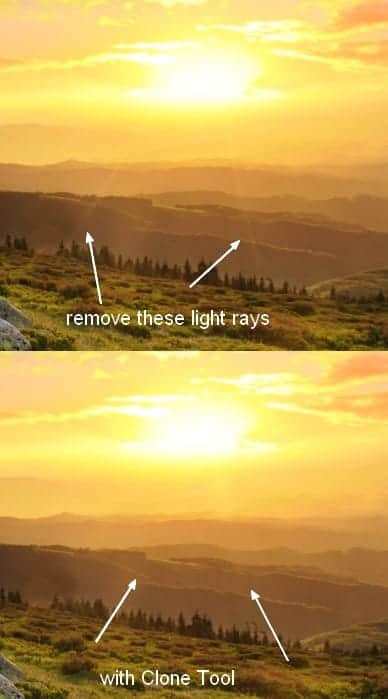
Step 4I make a new layer with Clipping Mask and active Clone Tool (S). Use this tool to remove some light rays:
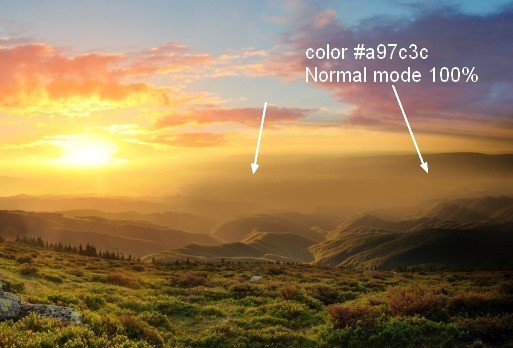
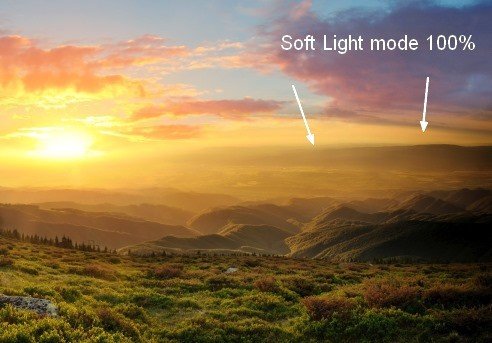
Step 5Make a new layer, I use soft brush with color #a97c3c to paint on the right side of the mountains to add more warm color to them. Then change the mode to Soft Light 100%:
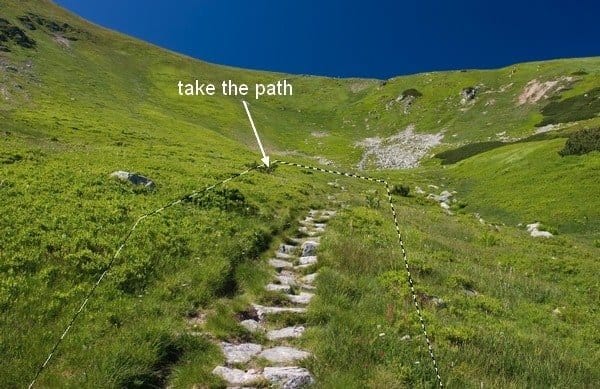
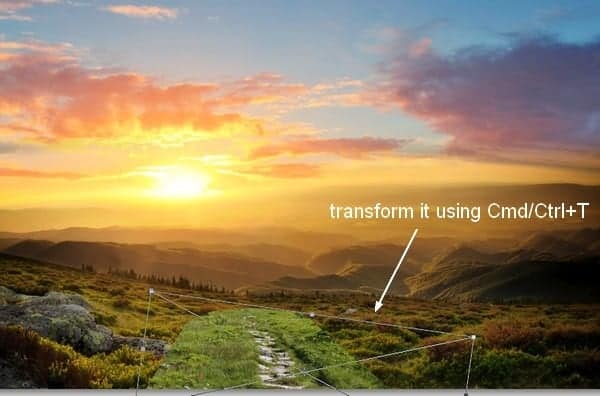
Step 6Open path stock. Copy path part and place it at the middle section of our image, transform to get a look below:
Use layer mask to remove hard edges:
|
![sunrise6a[1]](http://www.photoshoptutorials.ws/wp-content/uploads/2013/11/sunrise6a1.jpg "sunrise6a[1]")
| You are subscribed to email updates from Photoshop Tutorials To stop receiving these emails, you may unsubscribe now. | Email delivery powered by Google |
| Google Inc., 20 West Kinzie, Chicago IL USA 60610 | |
No comments:
Post a Comment