Photoshop Tutorials: Wacom Intuos5 Review |  |

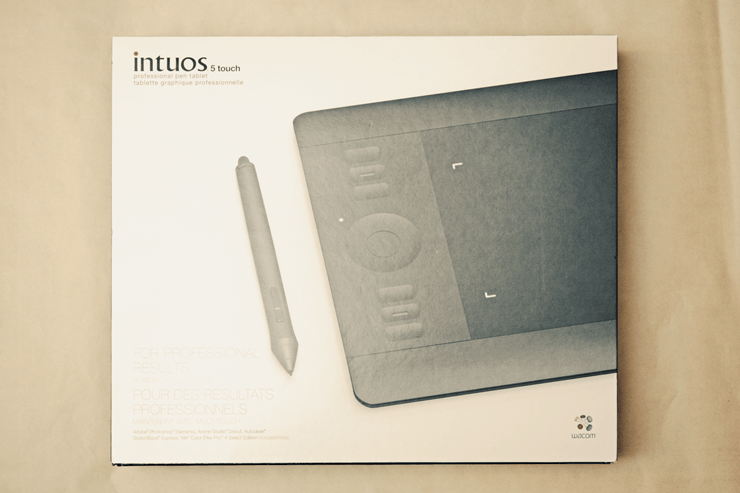
| Posted: 10 Jan 2013 07:21 PM PST What's newThe Intuos5 introduces multi-touch surface, ExpressKeys, and optional wireless capability. Unlike the Intuos4, the Intuos5 does not have an OLED display. Wacom replaced this with the ExpressKeys which are touch-sensitive buttons that show an on-screen menu when you place your finger over it. This sounds like a downgrade, but it's actually designed like this so that you can keep your eyes on your work. The pen is the same.
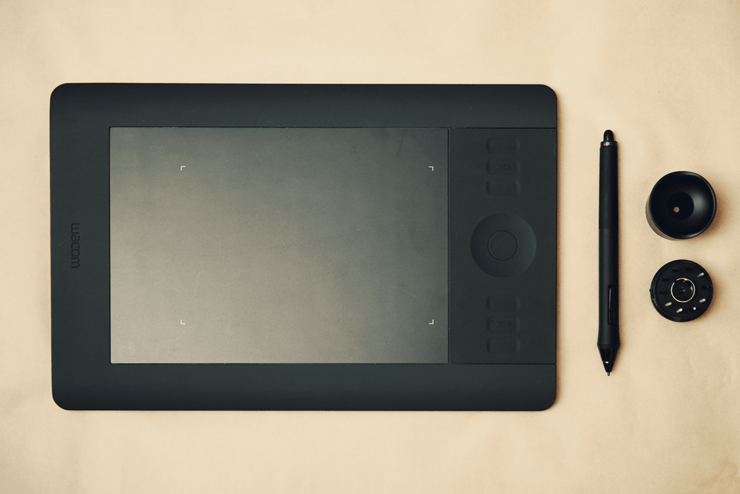
Design and Build QualityWith its minimalistic stealth black design, the Intuos5 looks great with anything. Everything around the drawing surface has a soft rubberized. The ExpressKeys button on the side of the tablet are bevelled so that you can access them by feel. It’s ambidextrous design lets you rotate to suit your left-handed or right-handed configuration. This might just be the most attractive tablets available. Asides from its looks, the build quaity is excellent with no flex of the tablet any way you hold it. It feels durable in your hands and weighs just enough to rest comfortably in your lap.
PenThe pen is identical to its previous version, the Intuos 4. It has 2048 levels of pressure, 60 degrees of tilt sensitivity, some buttons, and interchangeable nibs. In the hands, it feels light without feeling hollow. It's thick rubberized grip (a little bit of a dust magnet) allows you to better control your strokes. The eraser tip feels loose but is perfectly fine when you use it.
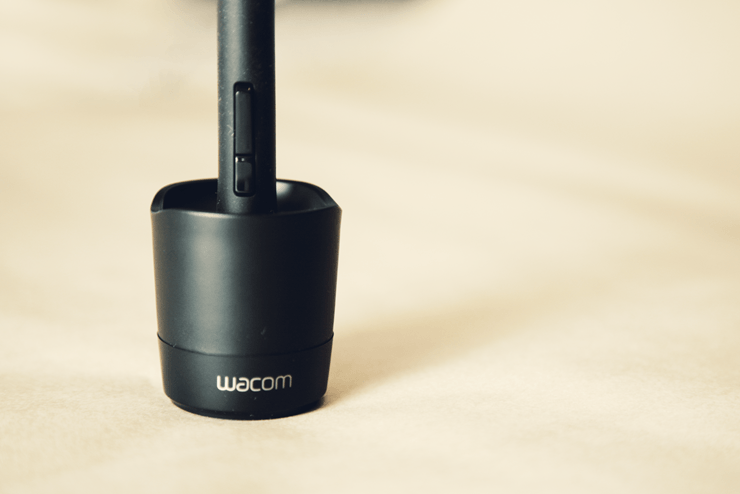
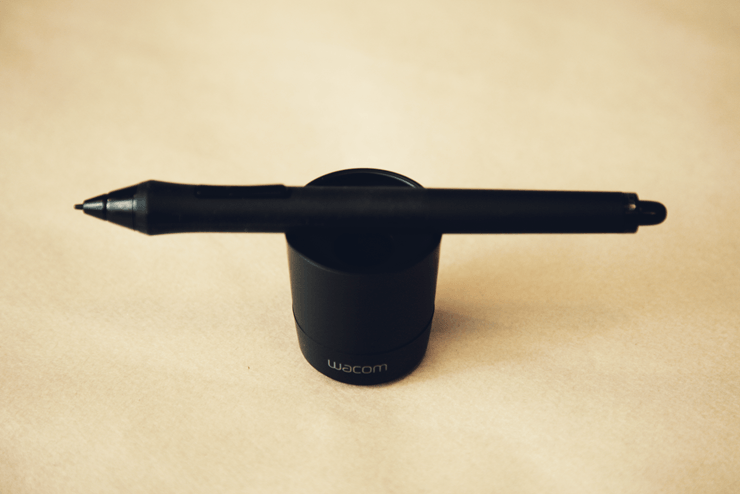
Pen StandThe pen stand looks great and does a great job holding the pen. It sits perfectly and has a weighted base to prevent it from wobbling. The grooved top lets you place the pen horizontally so that your workspace can look more zen and artistic.
|

| You are subscribed to email updates from Photoshop Tutorials To stop receiving these emails, you may unsubscribe now. | Email delivery powered by Google |
| Google Inc., 20 West Kinzie, Chicago IL USA 60610 | |
No comments:
Post a Comment