Pages

Pages

Friday, August 30, 2013

Photoshop Tutorials: Freebie: 8 Beautiful & High-res Frosted Backgrounds

Photoshop Tutorials: Freebie: 8 Beautiful & High-res Frosted Backgrounds

Link to Photoshop Tutorials

Freebie: 8 Beautiful & High-res Frosted Backgrounds

Posted: 29 Aug 2013 10:44 PM PDT

Beautifully Blurred Backgrounds for Websites, iOS/Android Apps, and More!

This set contains 8 high-res (10 megapixels) frosted backgrounds. If you're a SparkleStock member, you get 80 backgrounds and they're 20 megapixels!

image

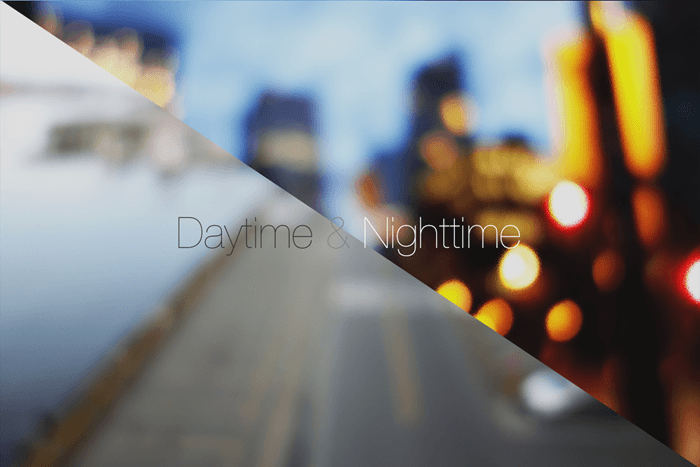
The set contains both daytime and nighttime photos. Because the photos are defocused in camera (instead of in Photoshop), you get the beautiful bokeh and realistic blur that makes your product more professional-looking.

image

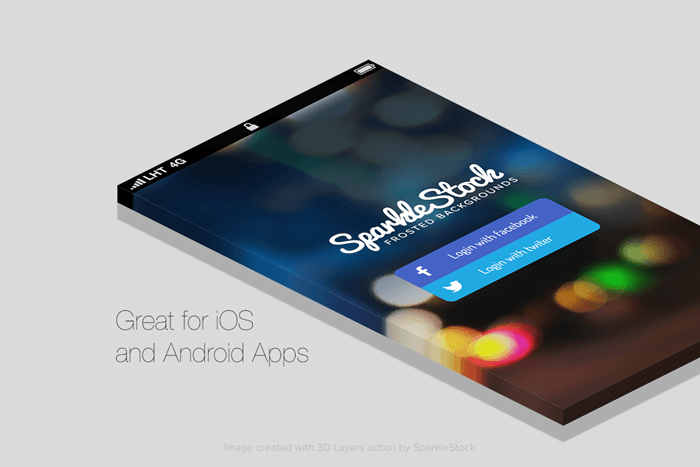
These backgrounds are perfect for iOS/Android apps. And at 10 megapixels, you have more resolution than you need even for the iPad with Retina display!

image


Preview the Backgrounds

2 1 8 7 5 6 4 3

Download the Frosted Backgrounds

8 Backgrounds, 10 Megapixels

80 Backgrounds, 20 Megapixels

Monday, August 26, 2013

Photoshop Tutorials: Create This Striking Fairy Tale Photo Manipulation in Photoshop

Photoshop Tutorials: Create This Striking Fairy Tale Photo Manipulation in Photoshop

Link to Photoshop Tutorials

Create This Striking Fairy Tale Photo Manipulation in Photoshop

Posted: 26 Aug 2013 12:58 AM PDT

Preview of Final Results
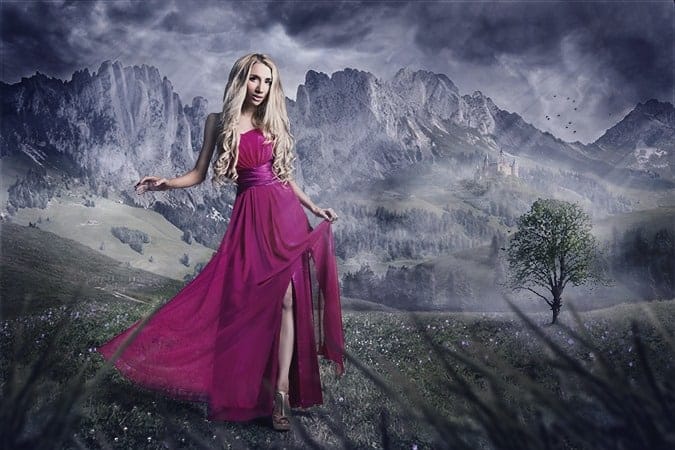
image002


Tutorial Resources


Step 1 – Creating Background

Download two stock photos of background and drag them into a new document in Photoshop. The photo with meadow should be above the photo with mountains. Name the top layer MEADOW and the layer under MOUNTAINS.
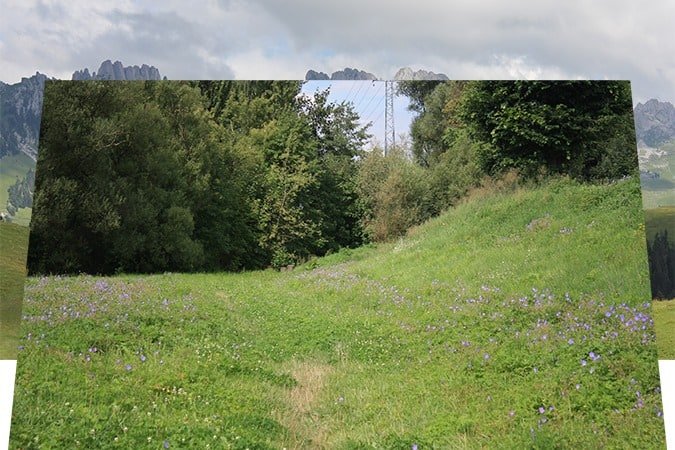
image003

As you can see from the photo above some blending needs to be done to make the background realistic looking. Add new layer mask to MEADOW. You can find the button “Add layer mask” on the bottom part of the Layers palette. If you don’t see this palette go to Window > Layers or simply press F7 on your keyboard and it appears.
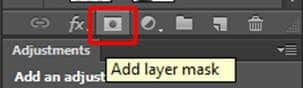
image004

Grab the Brush Tool (B), select some soft round brush, set its Opacity on 100% and pick black color. Make sure layer mask is active by clicking on it and start painting over the areas you want to make invisible.
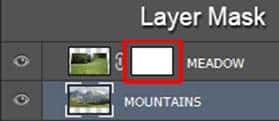
image005

You should end up with picture similar to the one below.
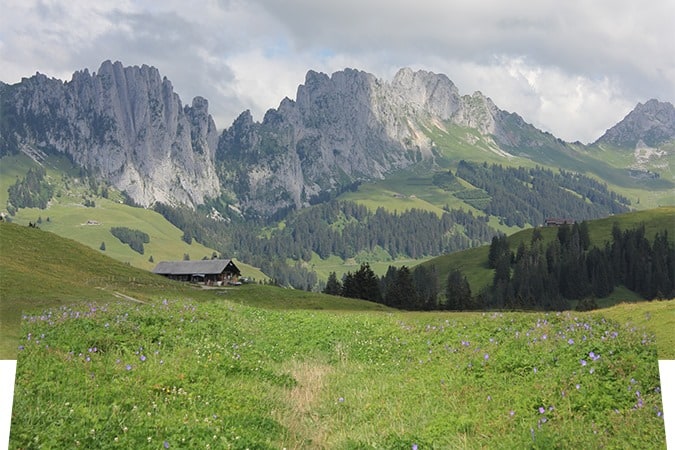
image006


Step 2 – Cloning

As you can see there are missing parts of grass in the bottom right and left corner. You’ll add them in this step. And you’ll also clone away the cabin on horizon. You’re making fantasy looking photo manipulation and modern cabin doesn’t fit the concept.

Add new empty layer on the top of all layers and name it CLONING. Grab the Stamp Tool (S), select some grass as cloning source and clone to the empty spaces in the corners. Often change the cloning source to avoid getting repetitive pattern. It doesn’t look realistic.

On the following photo you can see the example of wrong cloning with repetitive pattern (left corner) and correct cloning (right corner).
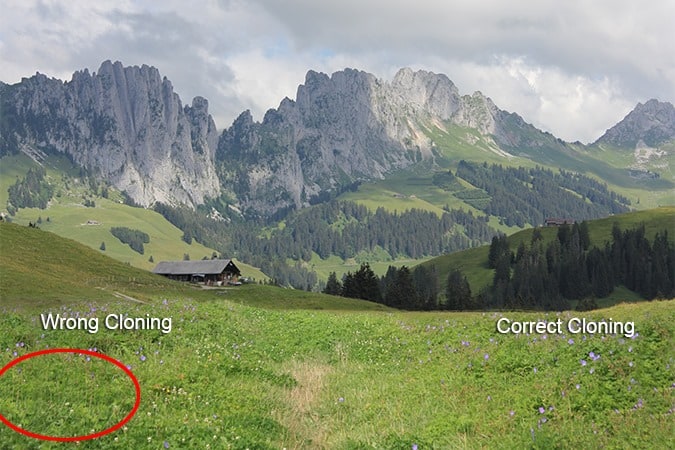
image007

It’s bit more complicated to clone out the cabin because there isn’t enough cloning sources you could use. Look at the following picture to see how you should proceed.
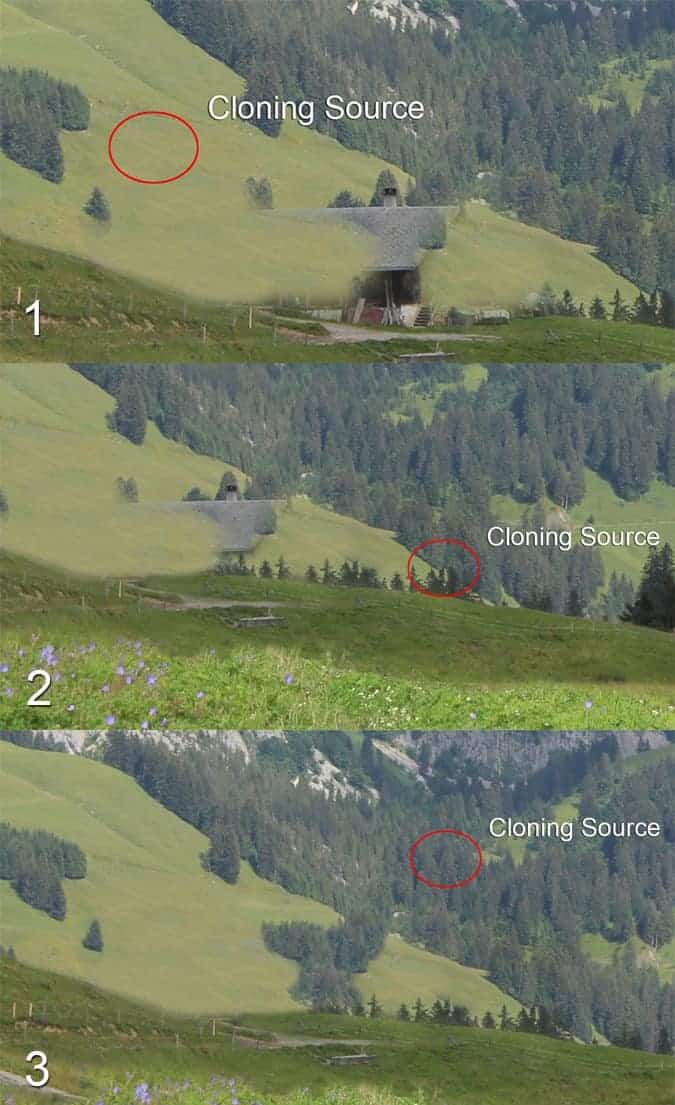
image008


Step 3 – Adding Castle

This step is really quick and easy. You’ll just add castle on one of the mountains in the background to create more fairy tale-ish atmosphere. Download photo of the castle listed in the beginning of the tutorial and drag it into your photo manipulation. Place it on the top of all layers and name it CASTLE. Press Ctrl+T to activate the Free Transform Tool and resize it on proper size. Hold Ctrl on your keyboard while doing it to remain constant proportions.

To blend it properly with the rest of the image cut out the background. Use any method you’re comfortable with – e.g. the Lasso Tool (L), the Eraser Tool (E) or the Pen Tool (P). As you can see right now castle is too dark and saturated and doesn’t fit well to the rest of the image. Fix it by adding new adjustment layer Hue/Saturation (you can find the button “Add new adjustment layer” next to the “Add layer” button you’ve used in previous steps). Set the value Saturation on -35 and Lightness on +10.
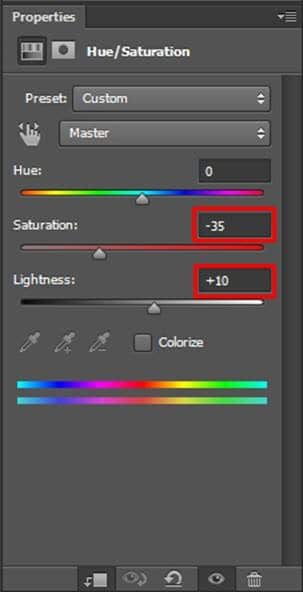
image009

Right now the adjustment layer affects all layers below itself. But you want to adjust only CASTLE and not the rest of the image. To achieve that right click on the adjustment layer you’ve just added and select Create Clipping Mask. After this step your photo manipulation should be similar to the one below.
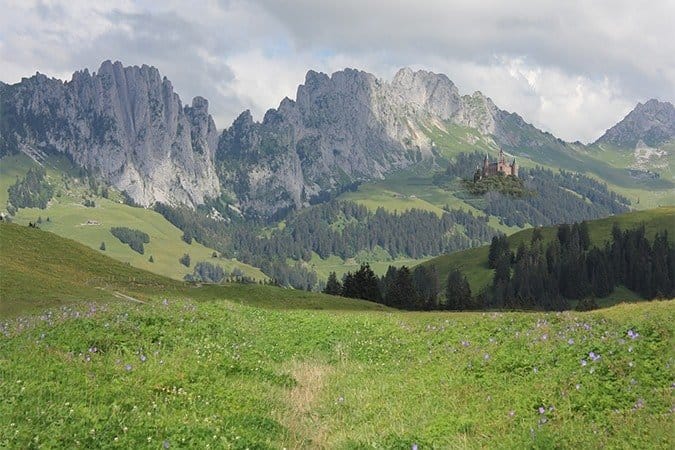
image010


Step 4 – Adding a Woman

Download photo of a woman listed in the beginning of the tutorial and drag in into your photo manipulation. Place it on the top of all layers and name it WOMAN.

To blend this layer properly with the rest of the image you need to do two things. First add shadow under her and second blend the clothing better because now its obvious that the woman was shot in the studio (see white color behind the fabric). In this step you’ll add the shadow and in next you’ll blend the dress better.

Create new empty layer under WOMAN and name it SHADOW. If you look at the mountains in the background you can see that sun hits them from right side of the image. That is our main light source and shadow of the woman should be casted in the opposite direction.

Grab the Brush Tool (B), select some soft round brush and set the Opacity on about 15%. Press Alt on your keyboard to activate the Eye Dropper Tool (I) and pick some very dark blue color from the picture. Then paint shadow similarly as the one shown on the following picture.
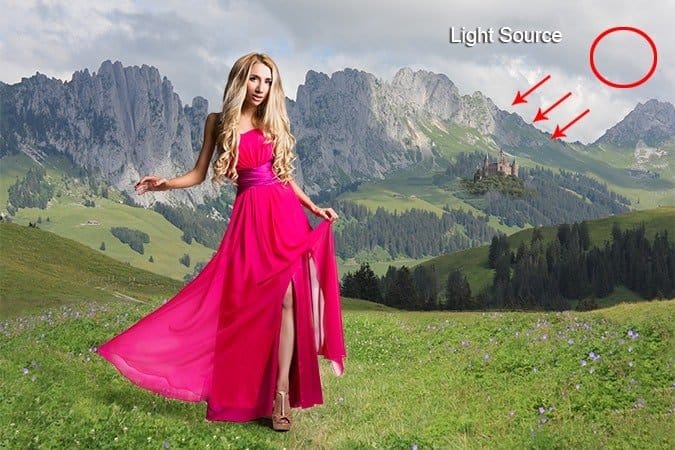
image011


Wednesday, August 21, 2013

Site Updates

Site Updates


PagSeguro – The leading solution for online payments in Brazil

Posted: 18 Aug 2013 08:04 PM PDT

Articles
Check out PagSeguro for a paypal alternative to making or collecting payment online

Tuesday, August 20, 2013

Site Updates

Site Updates


Funny photoshop: how to photoshop a face into a banana picture

Posted: 19 Aug 2013 10:24 PM PDT

Photoshop
A funny photoshop tutorial on how to insert your face into a picture

Monday, August 19, 2013

Photoshop Tutorials: How to Create a Breathtakingly Artistic Winter Horse Illustration in Photoshop

Photoshop Tutorials: How to Create a Breathtakingly Artistic Winter Horse Illustration in Photoshop

Link to Photoshop Tutorials

How to Create a Breathtakingly Artistic Winter Horse Illustration in Photoshop

Posted: 19 Aug 2013 03:07 AM PDT

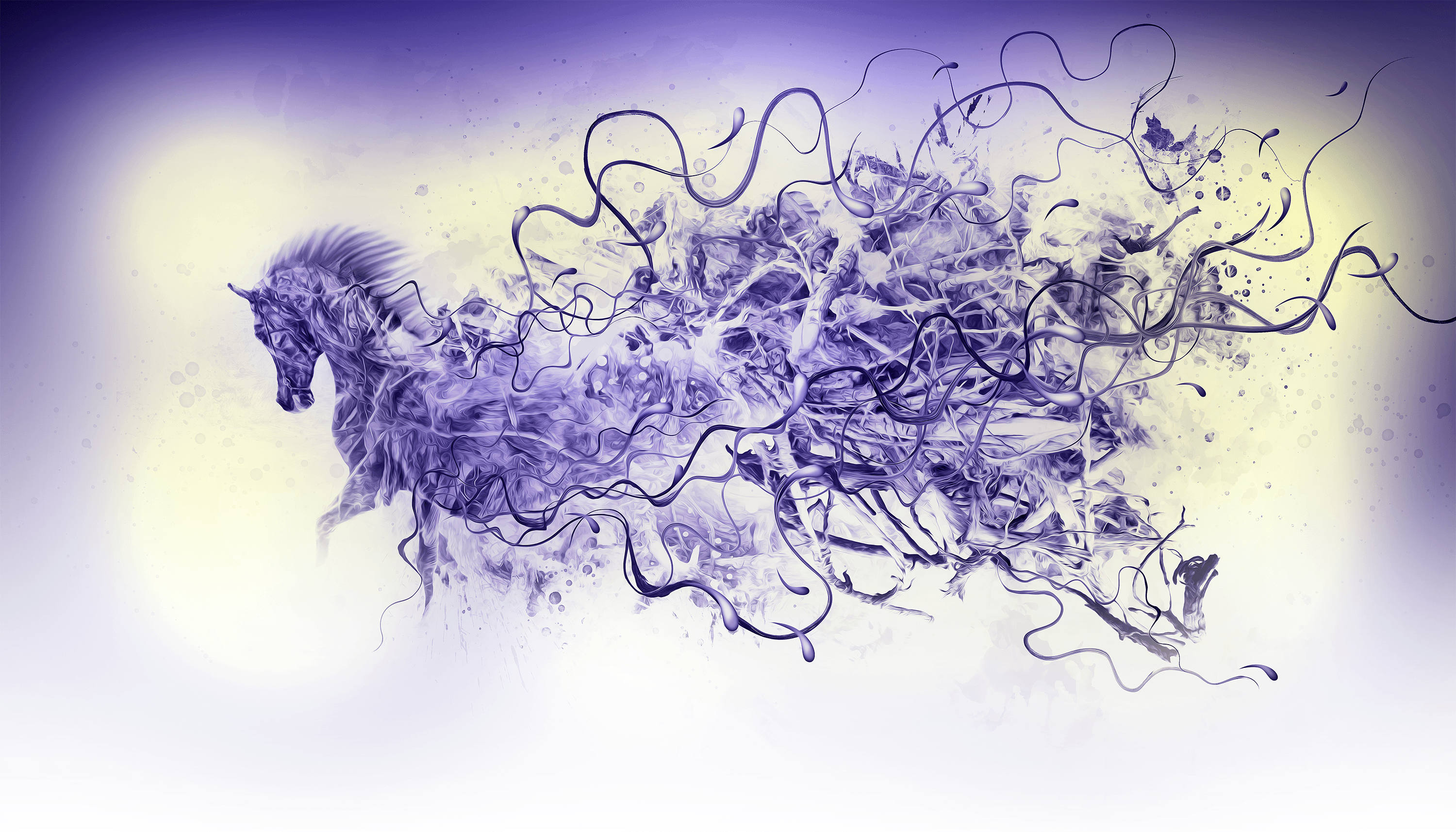
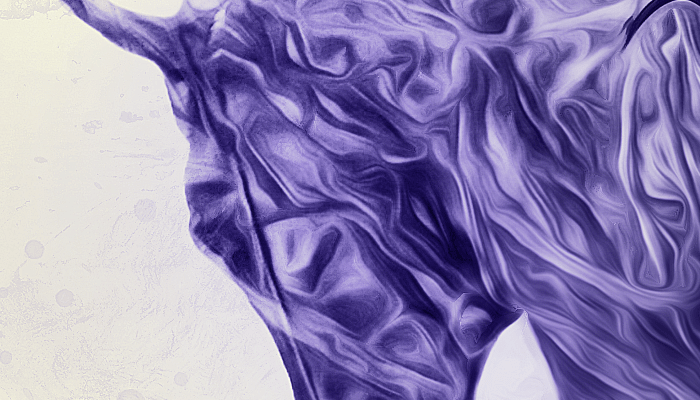
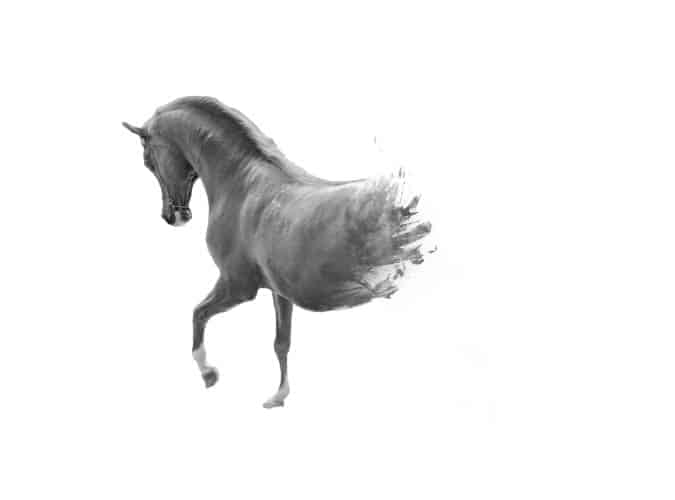
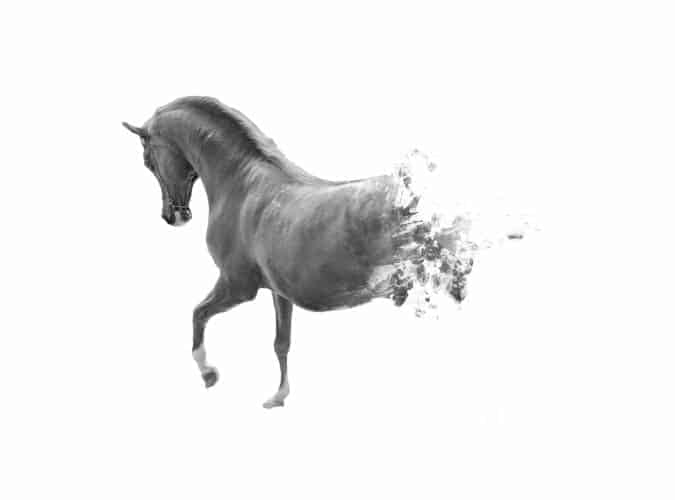
Preview of Final Results

image

image


Tutorial Resources


Step 1

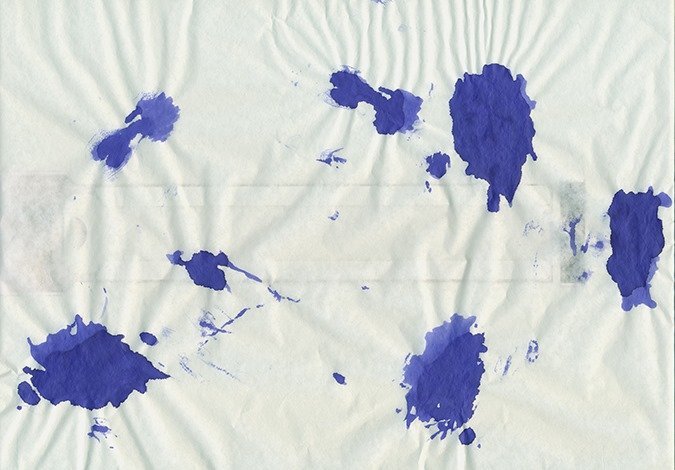
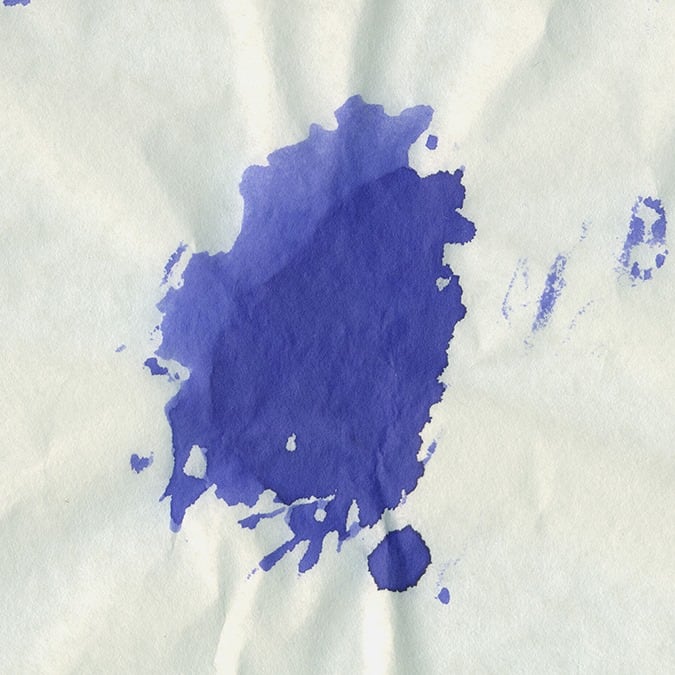
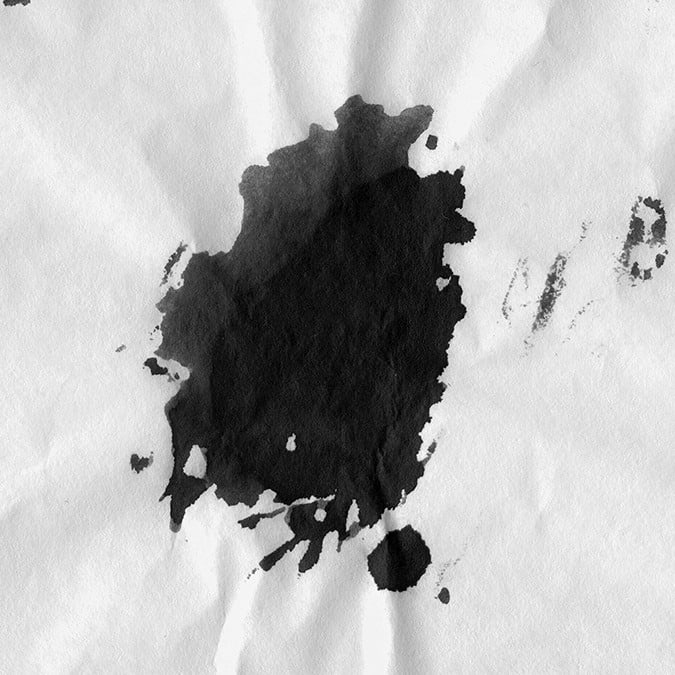
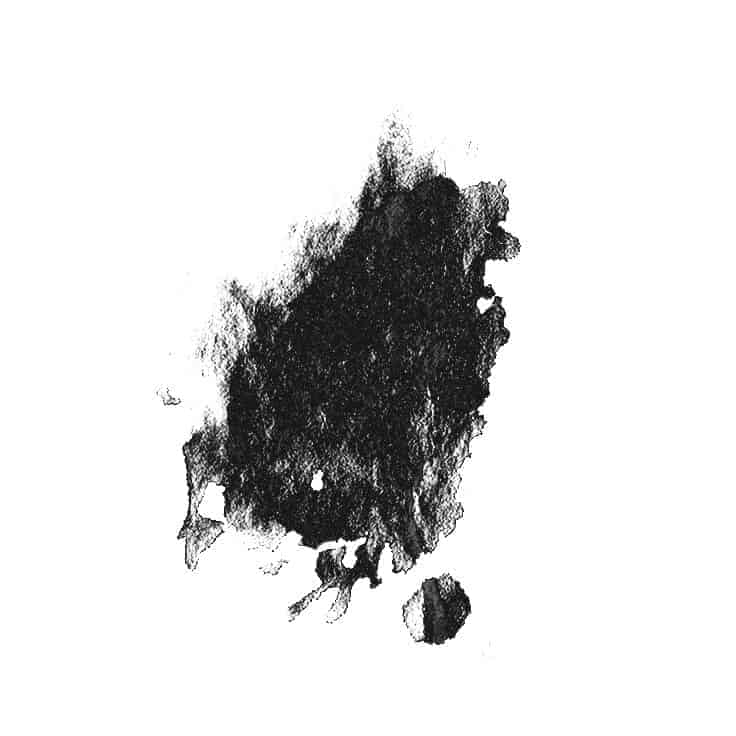
In this step I will show how to create custom brush. For this I used scan of splashes made with ink.

image003

Use the Crop Tool (C) (by pressing shift key you will select square)

image004

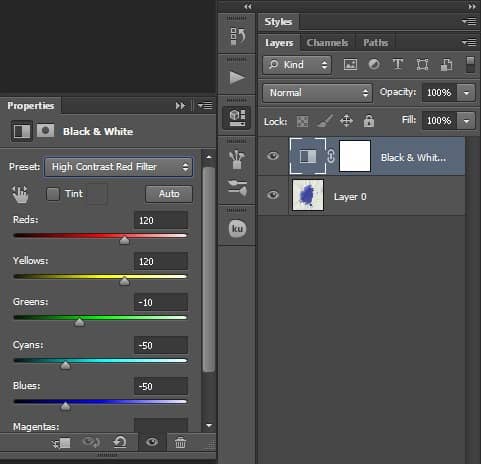
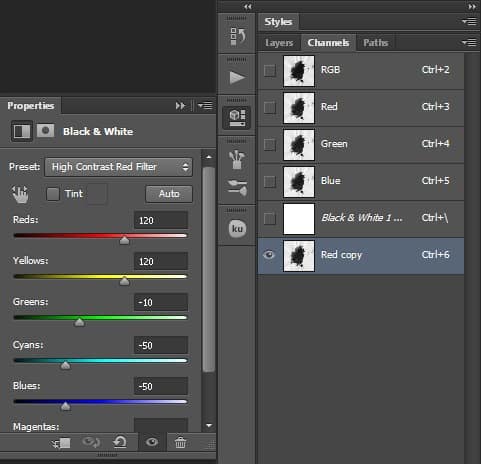
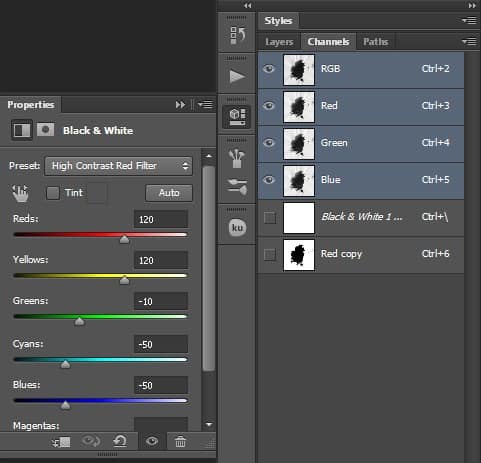
Add a Black & White Adjustment Layer by going to Layer > New Adjustment Layer > Black & White. Set to "High Contrast Red Filter"
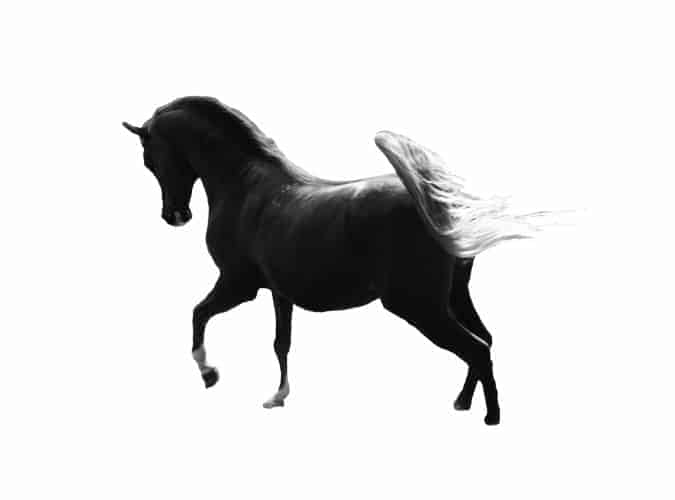
image005

image006

Go to Channels panel and duplicate Red Channel. Right click on Red channel and chose Duplicate channel.
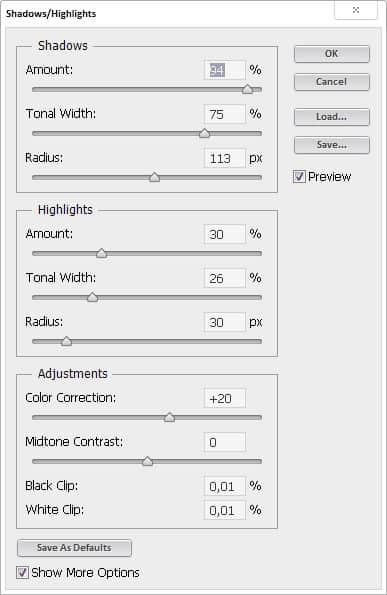
image007

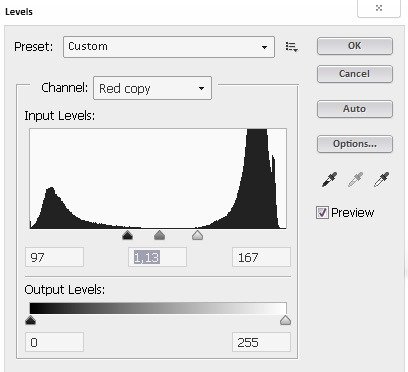
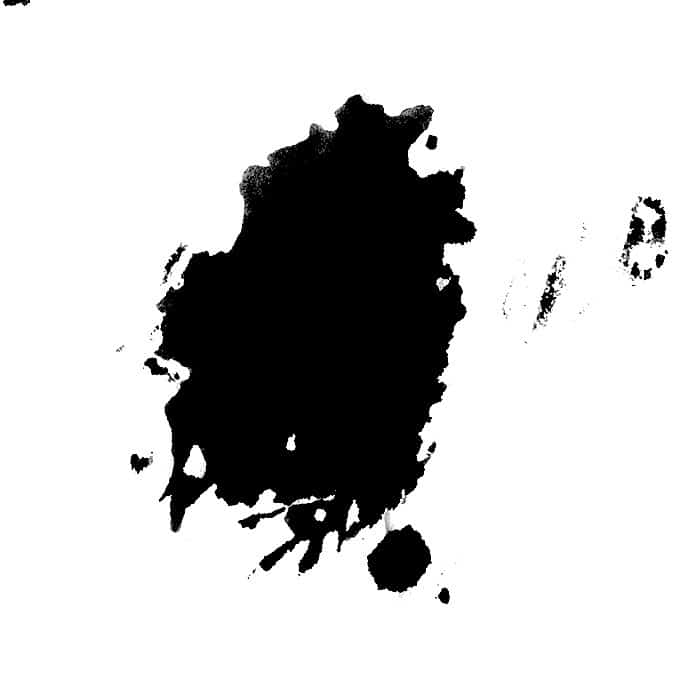
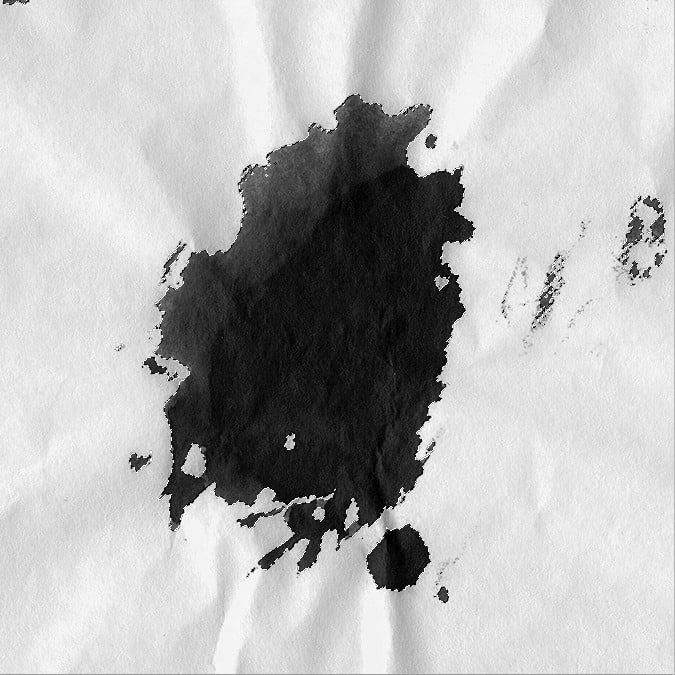
Go to Image/Adjustments/Levels. Move the sliders so that the splatter was dark and the background white.

Settings

image008

image009

Load selection

Press Ctrl then click Red channel.

Invert selection

Select/Inverse (Shift+Ctrl+I). Before you come back to Layers panel don't forget select RGB channel.

image010

image011

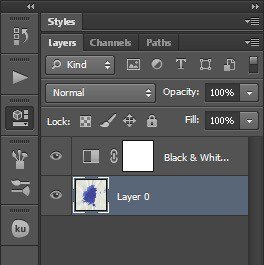
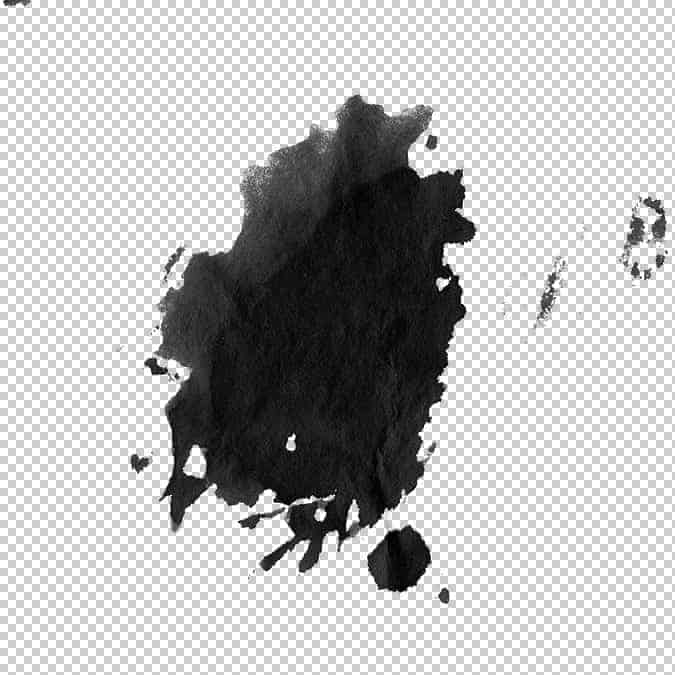
Go to Layers panel select splash layer then press Ctrl+J you will cut your selection.

image012

image013

Try to use different ways for selection like Color range or even Magic Wand Tool.

Color range (example)

image014

Now clean up parts which you don’t like. For this you can use Eraser tool (E) Also if you like change splash position.

image015

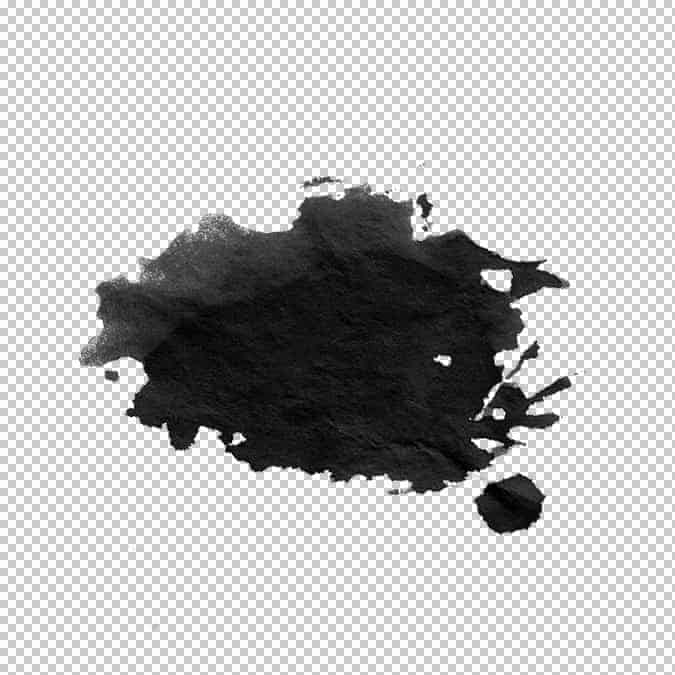
Create brush.

I use 2500x2500px 300dpi canvas for my brushes. Go to Edit/Define Brush Preset.

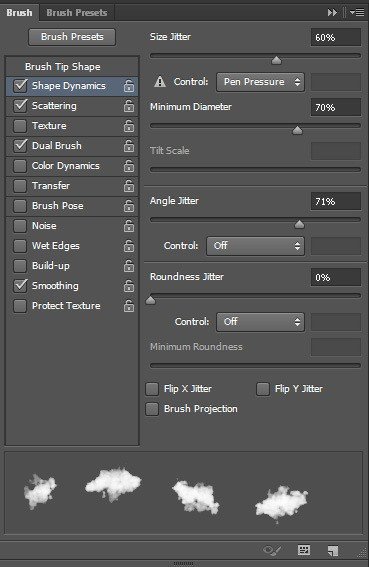
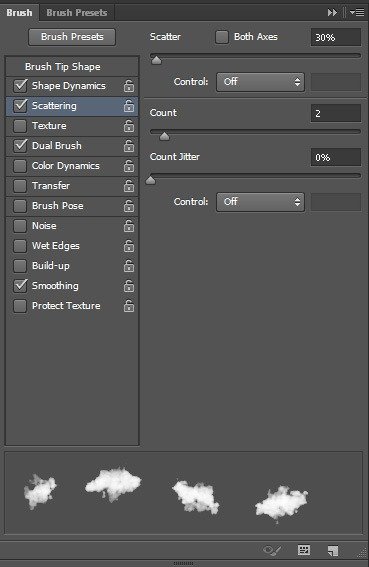
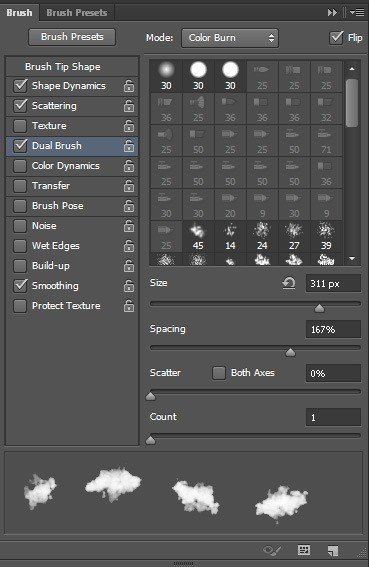
Please see my brush settings.

image016

image017

image018


Step 2

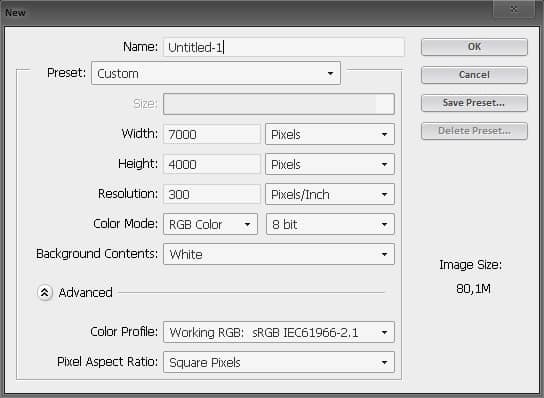
Create new document (File > New or Ctrl/Cmd+N)

image019

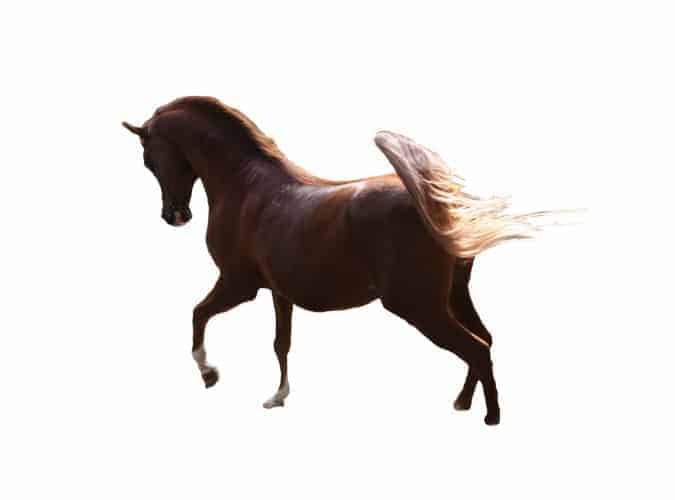
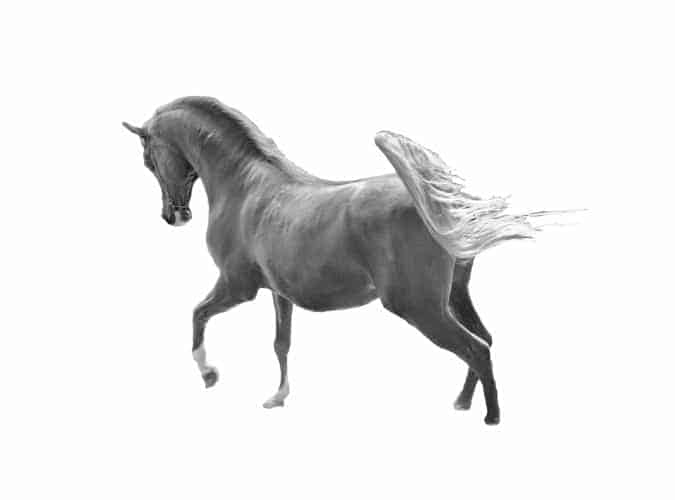
Add Horse photo.

Folder: Resources/Horse.psd

image020

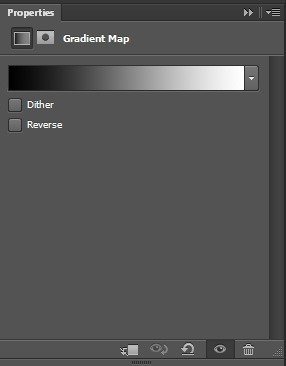
Add a black to white gradient map by going to Layer > New Adjustment Layer > Gradient Map.

image021

image022

Right click on your layer and choose "Convert to Smart Object". Now we are ready to add some Shadow/Highlights (Image > Adjustments > Shadow/Highlights).

Settings:

image023

image024

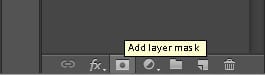
Click on the "Add layer mask" icon on the bottom of your Layers palette.

image025

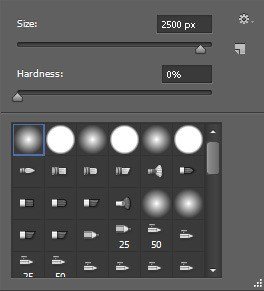
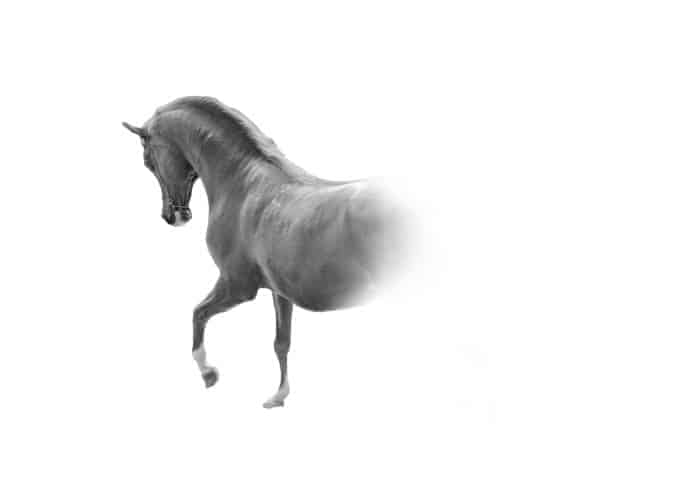
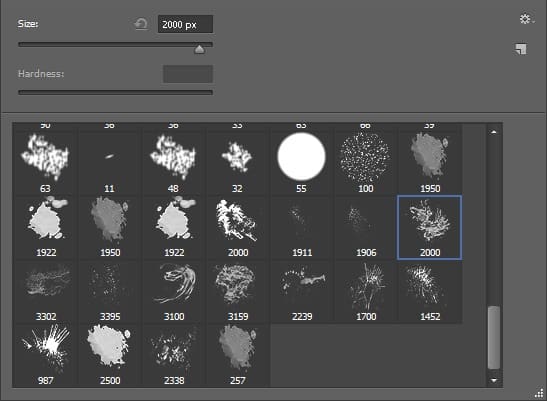
Select the Brush tool (B) then paint with black # 000000 on your layer mask. Usually, I just use the first default brush. Brush opacity 50%.

image026

image027

Use this brush and paint on layer mask with white color.

Just move brush above the place you want to uncover and click once or twice.

image028

image029

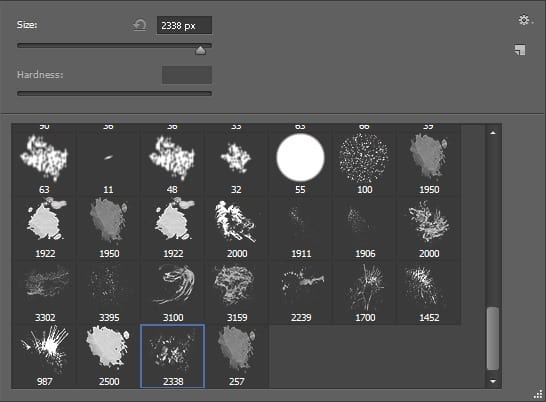
Use this brush and paint on layer mask with white color.

image030

image031