Pages

Pages

Friday, June 28, 2013

Photoshop Tutorials: Quick Tip: How to Create a Triangle Pixelation Effect in Photoshop

Photoshop Tutorials: Quick Tip: How to Create a Triangle Pixelation Effect in Photoshop

Link to Photoshop Tutorials

Quick Tip: How to Create a Triangle Pixelation Effect in Photoshop

Posted: 27 Jun 2013 07:42 PM PDT

Final Results
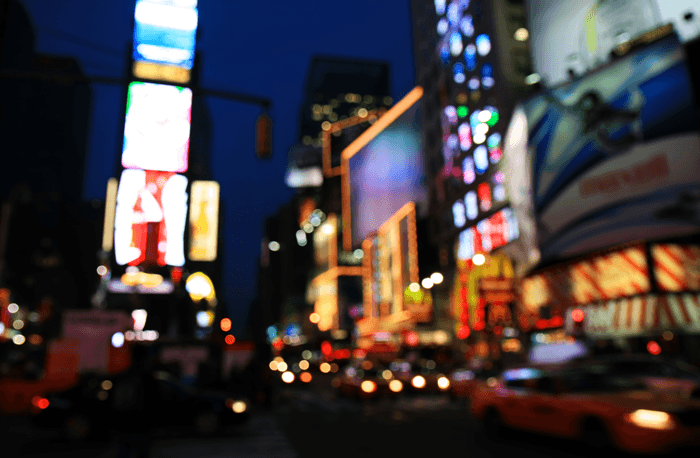
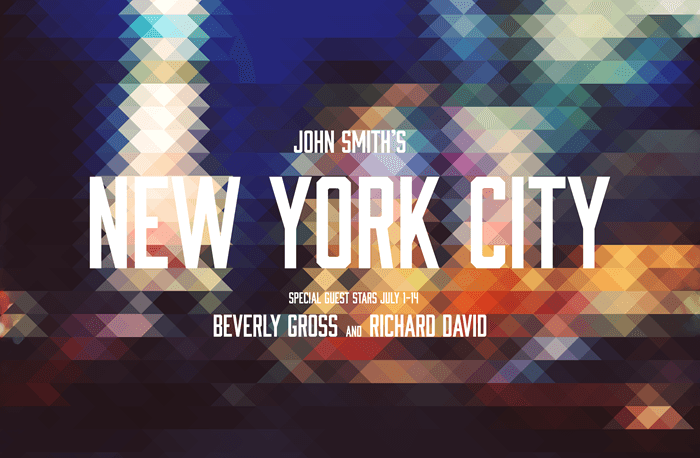
before
New York City Poster

Step 1

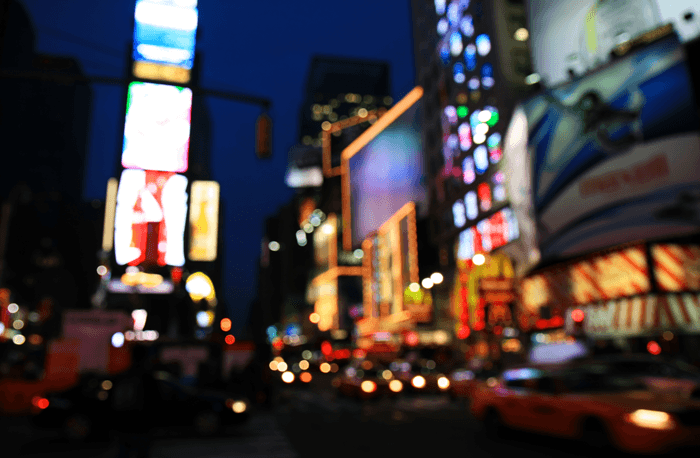
Start by opening any photo you want into Photoshop. You should resize the image to your final output size before you continue. This is the photo that we'll be using.

image


Step 2

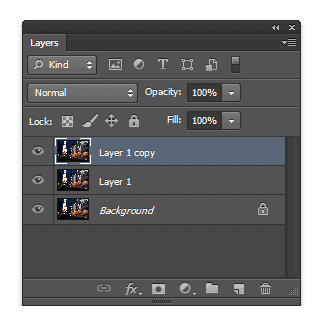
Duplicate your background layer twice.

image


Step 3

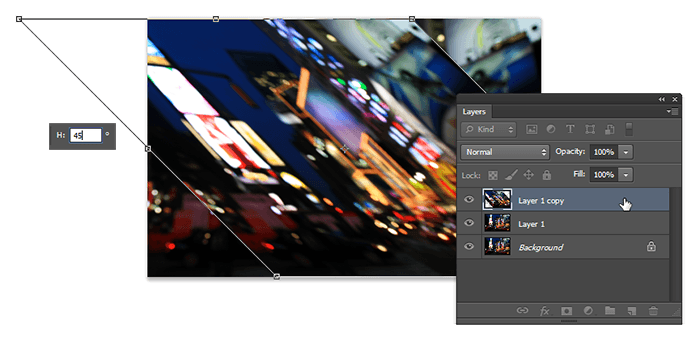
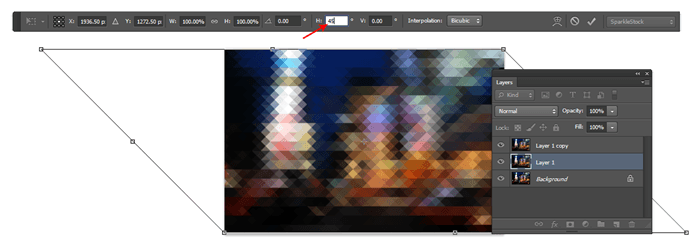
Activate the Transform tool (Ctrl/Cmd+T or Edit > Free Transform) then set the horizontal skew value to 45º.  The horizontal skew setting is located in the options bar when you have your Transform tool activated. Press Enter to apply the transformation.

image


Step 4

Go to Filter > Pixelate > Mosaic. Adjust the cell size setting to anything you like then click OK.

image


Step 5

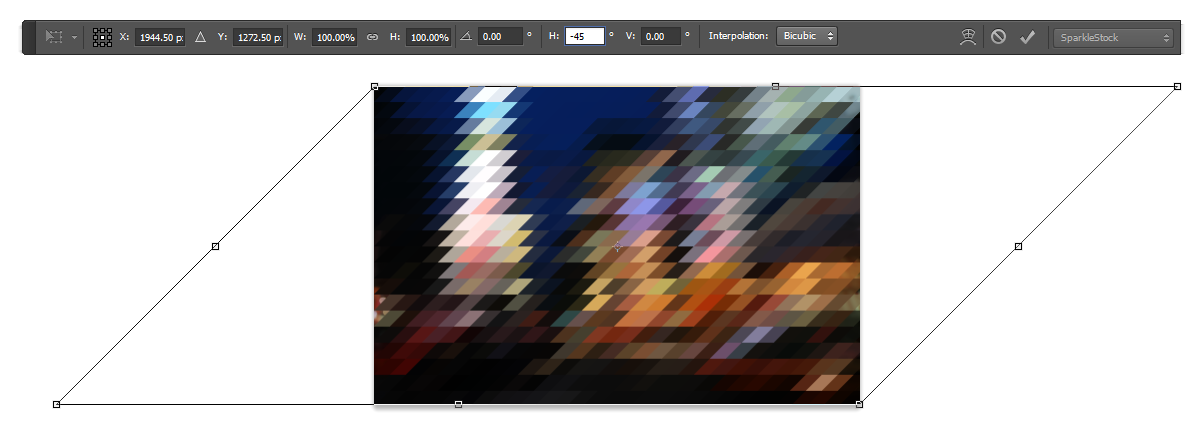
Next, we're going to transform it the opposite way. Activate the Free Transform tool (Ctrl/Cmd+T or Edit > Free Transform) then set the horizontal skew setting to –45º. Press enter to apply the transformation.

image


Step 6

Set this layers opacity to 50% then select the middle layer. We're going to be doing the same steps but with transformations done

image


Step 7

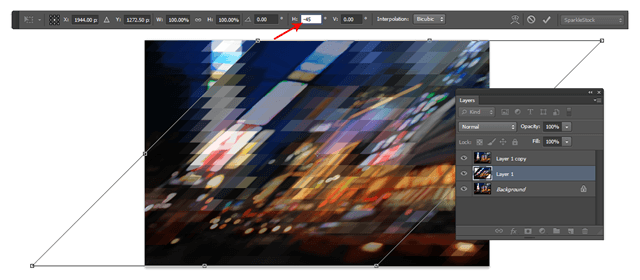
With the middle layer selected, activate the Free Transform tool (Ctrl/Cmd+T or Edit > Free Transform) then set the horizontal skew to –45º.

image


Step 8

Apply the same mosaic filter again. You can do this quickly by pressing Ctrl/Cmd+F or by going into the filter menu and selecting the first filter in the menu. Photoshop automatically places your last used filter on the top of this menu.

image


Step 9

Use the Free Transform tool (Ctrl/Cmd+T or Edit > Free Transform) to transform the layer back to its original shape by setting the horizontal skew value to 45º.

image


Step 10

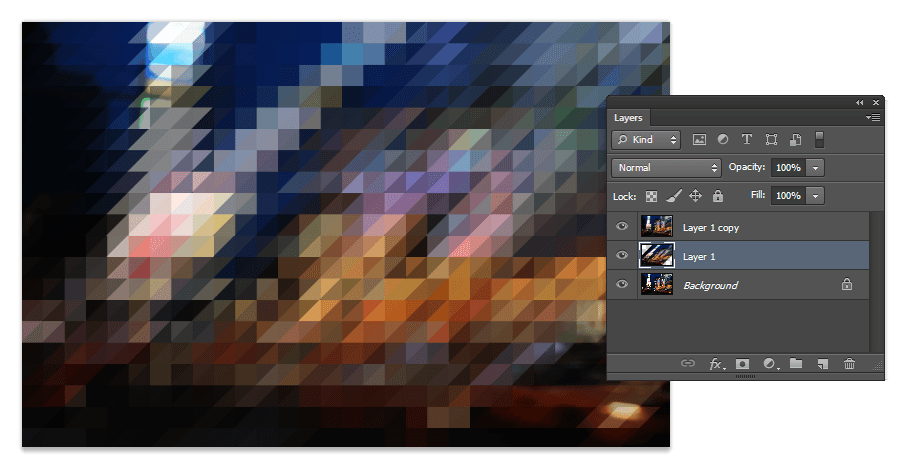
We're pretty much done but if you zoom, you can see that the edges don't really line up. To fix this, press the left or right arrows on your keyboard to nudge the layer until the intersections align.
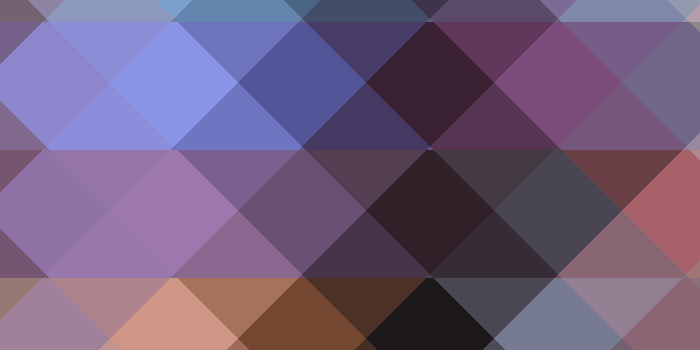
Before
After

Here's how the image looks like so far.

image


Step 11

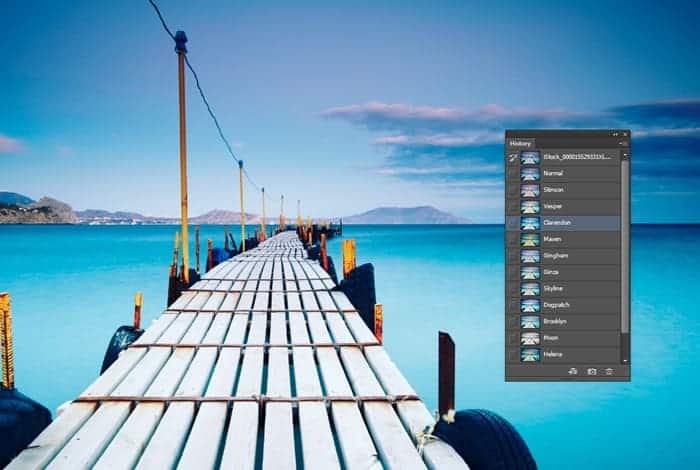
If you'll be using this as a background, you might want to apply a faded/vintage film effect. We used the Vesper effect from the Instagram Video Photoshop actions and completed the look with some text using the Abolition font.

New York City Poster


Final Results

before
New York City Poster

Download the PSD

Triangle Pixelation.zip | 2.97 MB

Wednesday, June 26, 2013

Site Updates

Site Updates


Tutorial on how to make letterpress effect in Photoshop

Posted: 26 Jun 2013 01:47 AM PDT

Photoshop
Learn how to make letterpress in this easy photoshop tutorial

Photoshop Tutorials: Freebie: Instagram Video Photoshop Actions (Stinson, Vesper, etc)

Photoshop Tutorials: Freebie: Instagram Video Photoshop Actions (Stinson, Vesper, etc)

Link to Photoshop Tutorials

Freebie: Instagram Video Photoshop Actions (Stinson, Vesper, etc)

Posted: 25 Jun 2013 03:14 PM PDT


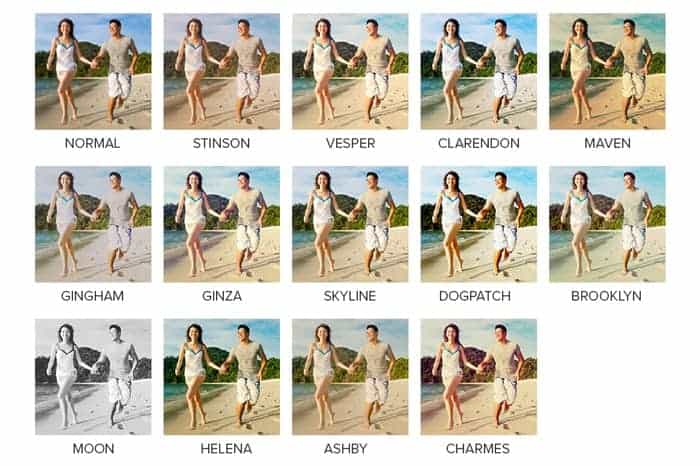
Instagram Video Photoshop Actions

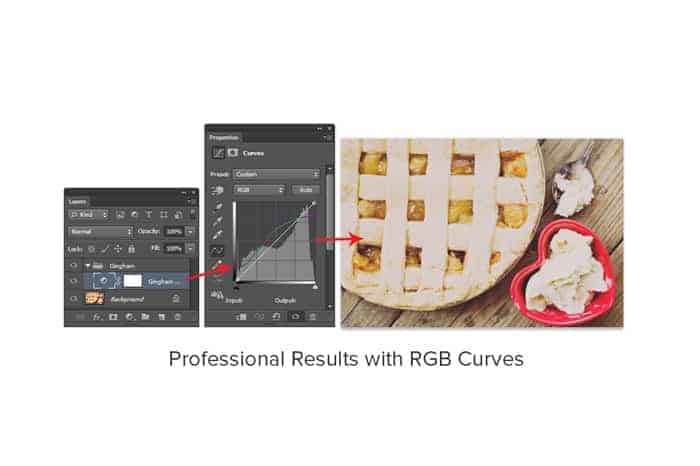
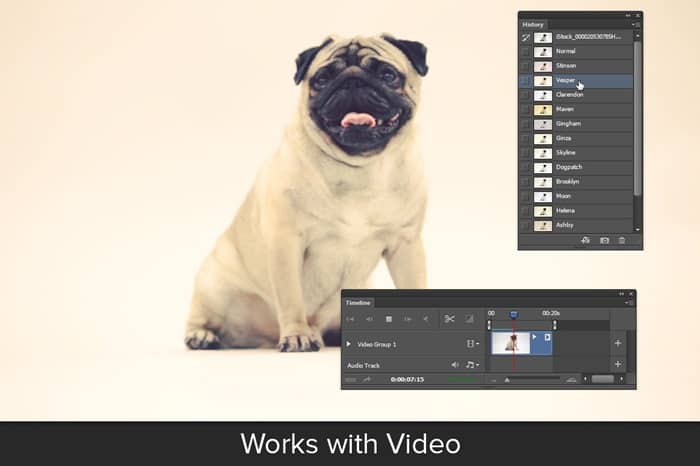
This set comes with 5 effects (Stinson, Vesper, Clarendon, Maven, and Gingham) and if you join SparkleStock, you can download all 13 effects. These actions can be used on both photos & videos and, using its snapshot prerendering feature, you can switch effects instantly without playing another action – even while your video is playing!

Title-2

Title-3

Title-4

Title-5


Download Instagram Video Photoshop Actions

Free Download (5 Effects)

Professional Edition (13 Effects)

Tuesday, June 25, 2013

Photoshop Tutorials: How to Create a World Under the Sky using Photoshop plus 1 more

Photoshop Tutorials: How to Create a World Under the Sky using Photoshop plus 1 more

Link to Photoshop Tutorials

How to Create a World Under the Sky using Photoshop

Posted: 25 Jun 2013 01:00 AM PDT

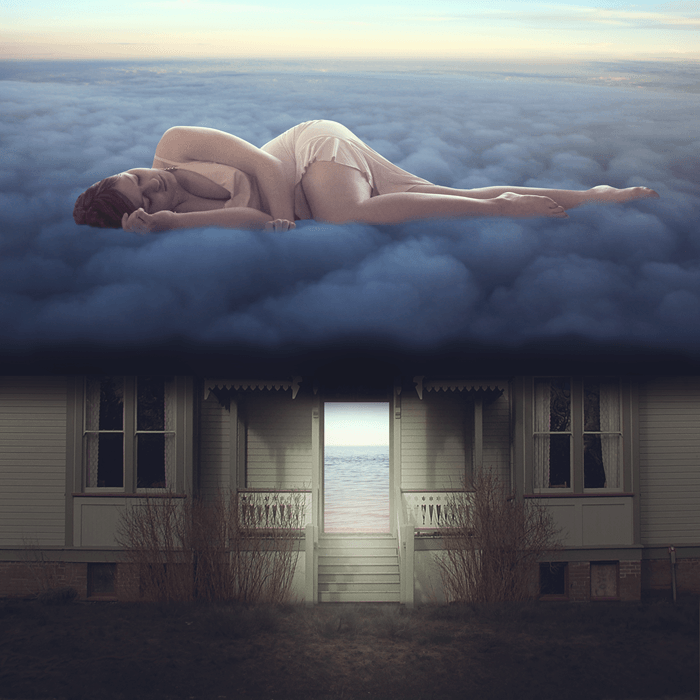
Preview of Final Results

World Under the Sky


Tutorial Resources


Step 1: Create a New Photoshop File

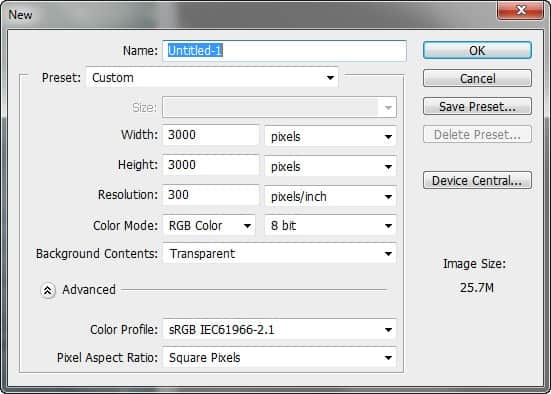
Now, let's start by creating a new image file, go to the Menu bar and click File > New, and then input the following values on their respective fields:

  1. Preset: Custom
  2. Width: 3000px
  3. Height: 3000px
  4. Resolution: 300pixels/inch
  5. Color Mode: RGB Color; 8 bit
  6. Background Contents: Transparent

image003


Step 2: Add the foreground and improve its lighting

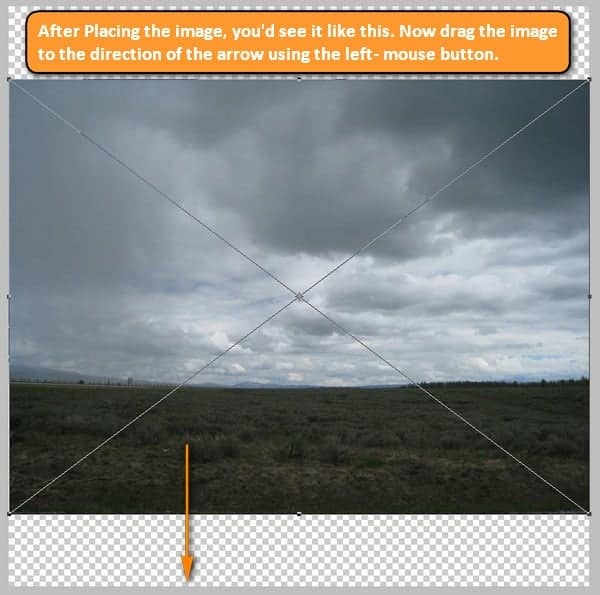
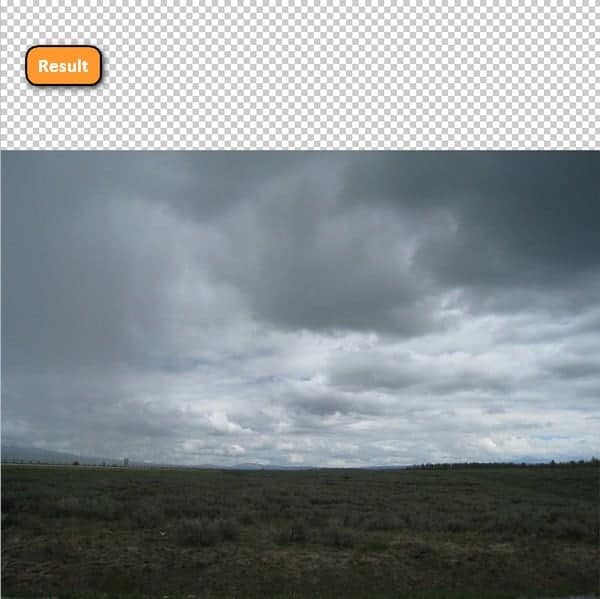
In this Step, we will be creating the land on which the mysterious house will be standing. Import the stock image – "Stock Field" by digital amphetamine to the canvas by clicking on File > Place and find it from the directory you've saved it into. Using the Place command is a non-destructive technique which will place the image as a Smart Object, and once the layer is a smart object you may transform it as many times as you like without any loss in quality.

image004

image005

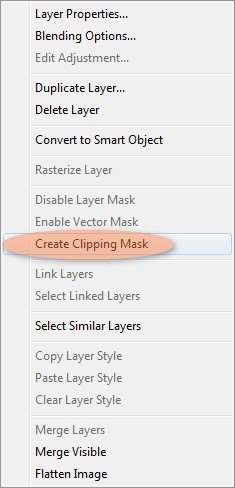
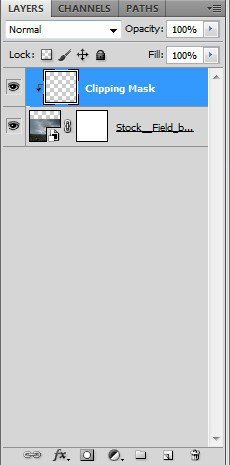
Next, let's darken the foreground. First, let's create a new layer (Ctrl/Cmd + Shift + N) and then we will create a Clipping Mask on the new layer to allow a non-destructive way to darken the foreground. To create a Clipping Mask, simply right-click on the newly created layer and then click on "Create Clipping Mask" once it opens.

Note: The new layer should be above the field layer.

image006

image007

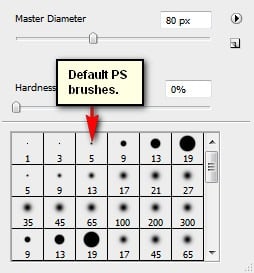
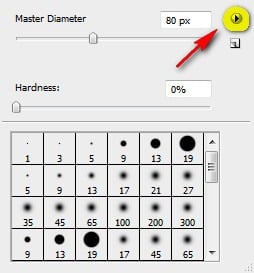
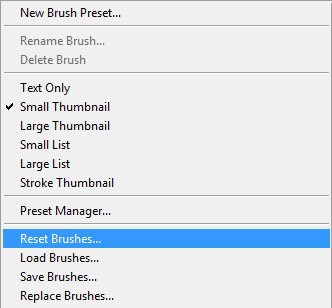
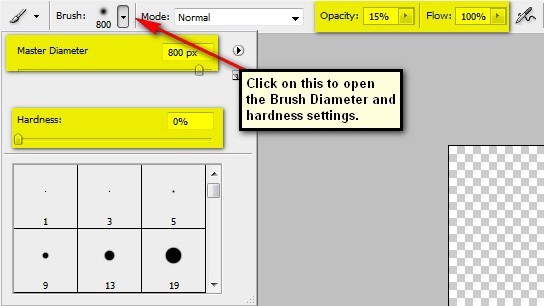
Now, activate the Brush tool (B) but before you proceed, make sure that the Brushes to be used are the default PS brushes. The default Photoshop brushes are shown on the image below, if that's not what you see, then follow the instructions below: Right click the canvas while a layer is selected and while the Brush tool (B) is activated and then click on the button highlighted below: Then click on "Reset Brushes" from the contextual menu. Now, that that is done input the following settings for our Brush tool (B):

  • Brush size: 800px
  • Hardness: 0%
  • Opacity: 15%
  • Flow: 100%
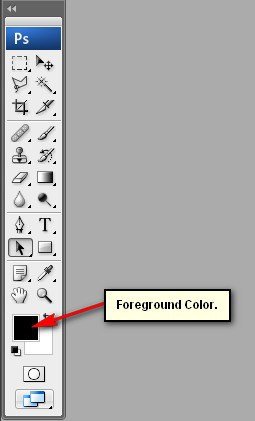
  • #: 000000

image008

image009

image010

image011

The Color Picker box opens once you click the Foreground Color box.

image012

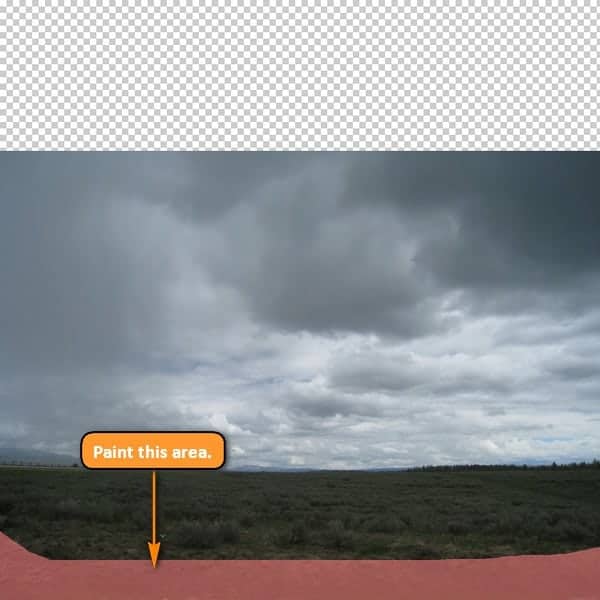
Now, paint over the area shown below:

image013

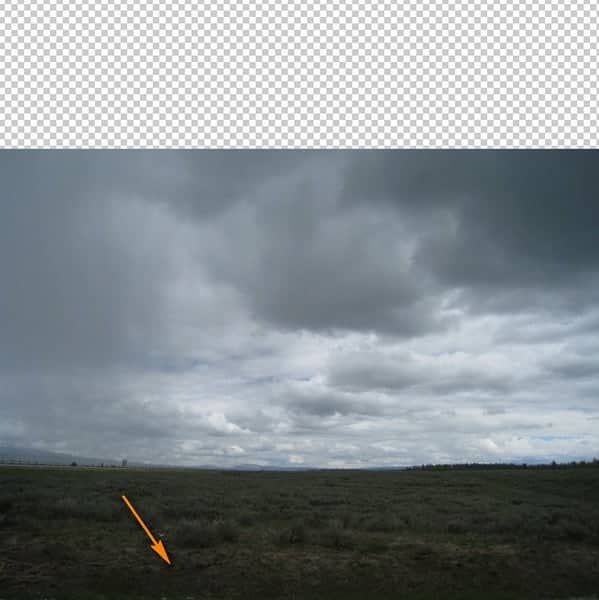
Brush on it several times until it results to something like what is shown below:

image014

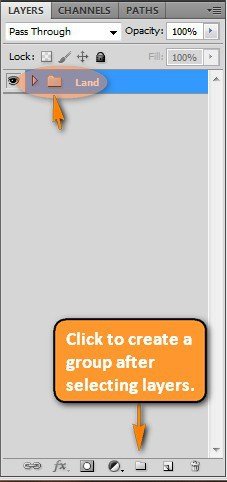
Once done, select all the layers and press Ctrl/Cmd + G to group them. This will avoid clutter and confusion in later Steps. Rename this group to "Land". To rename a layer, simply double-click on the words "layer 1" for example and a text box will appear, you may rename it then.

image015


Giveaway: Win Inspiring & Motivational Posters for Startups

Posted: 24 Jun 2013 12:11 PM PDT

Designed for Designers by Designers

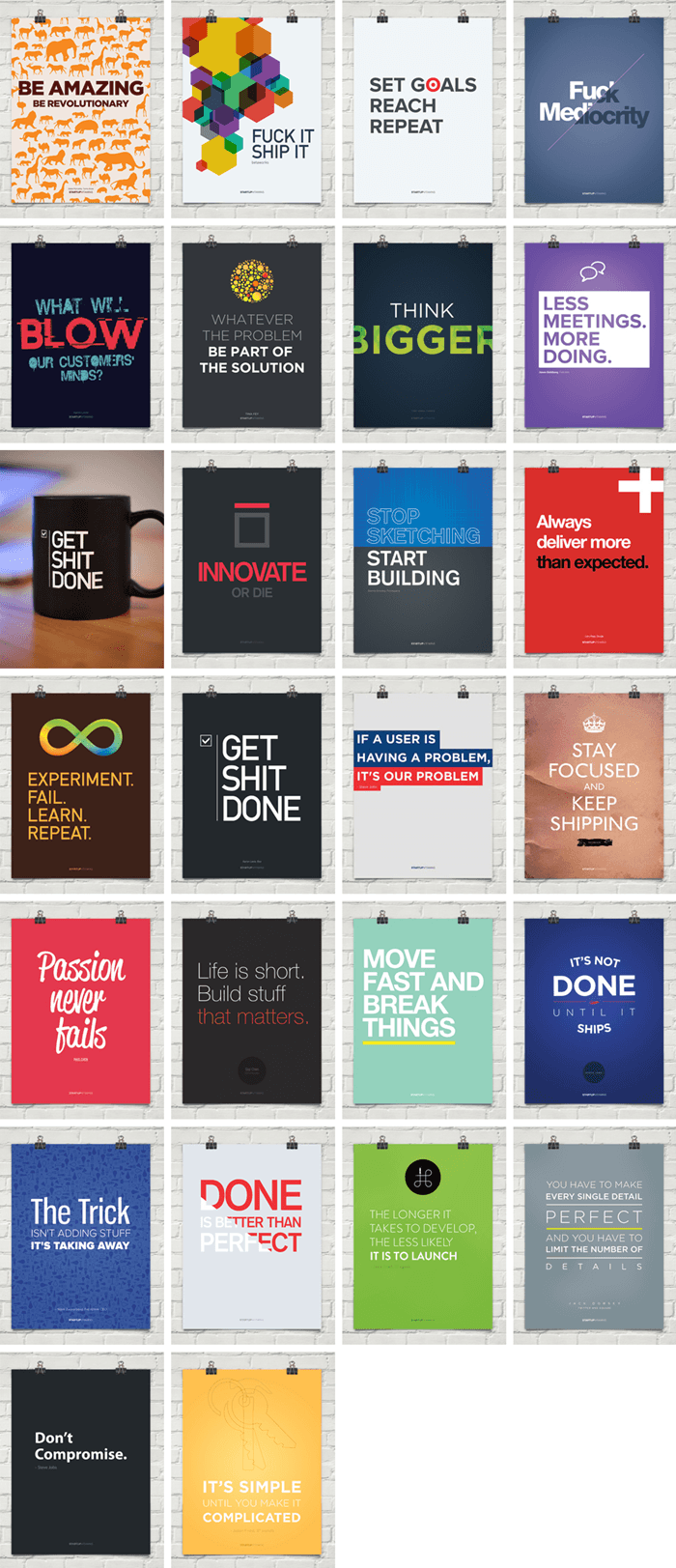
Remind yourself daily to be the best designer you can be with inspiring tips and quotes from leading entrepreneurs. These posters are professionally printed on thick and durable matte paper and they look great in any office setting. They retail for $36 each but you can get them now on Dealotto for $25 or less for the large posters or $18 or less for the small posters!

Motivational Posters for Designers

StartupVitamins Small Motivational Posters

StartupVitamins Large Motivational Posters