Pages

Pages

Tuesday, February 26, 2013

Photoshop Tutorials: Create a Colorful Retro Poster in Photoshop and Illustrator

Photoshop Tutorials: Create a Colorful Retro Poster in Photoshop and Illustrator

Link to Photoshop Tutorials

Create a Colorful Retro Poster in Photoshop and Illustrator

Posted: 25 Feb 2013 05:50 AM PST

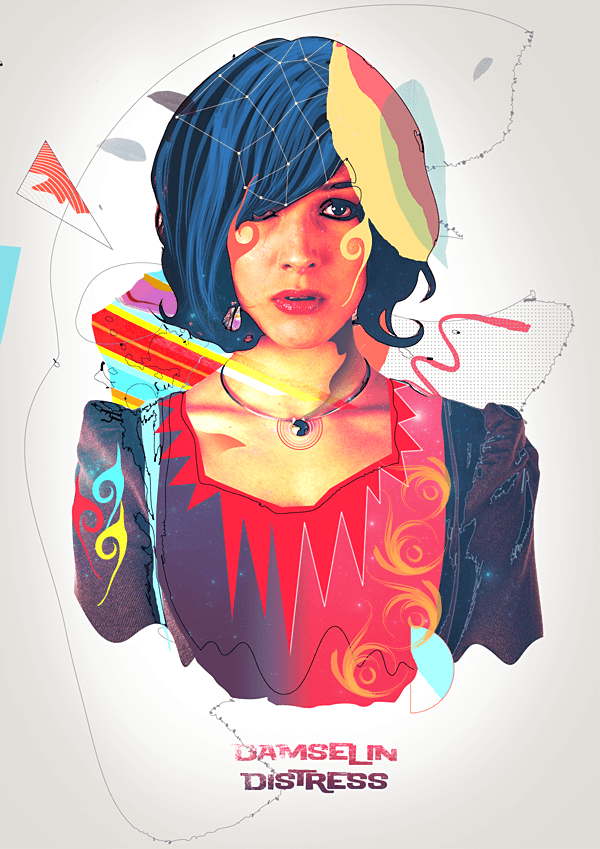
Preview of Final Results

final-results

Create a Beautiful Retro Style Portrait In Photoshop.


Resources


Step 1

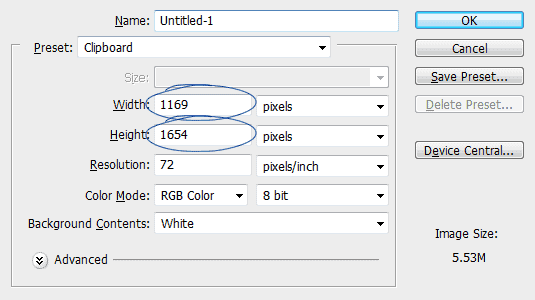
First is first. We need an empty canvas to begin working. Here is my canvas size of the finished design. So you can use it simply.

img(1)


Step 2

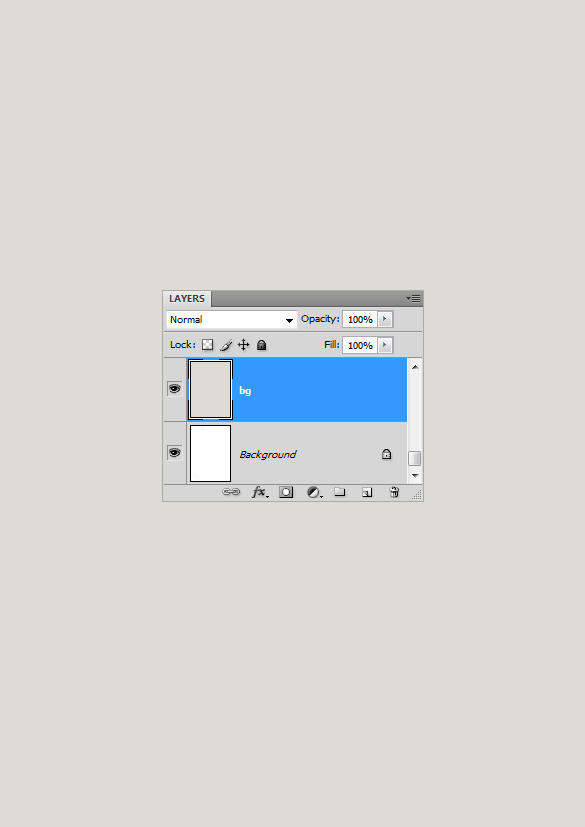
Photoshop just presented us with a blank, white canvas. We are going to set a more neutral colored backdrop for our design. So I created a new layer above the background layer and filled it with #e0ddd8.

img(2)


Step 3

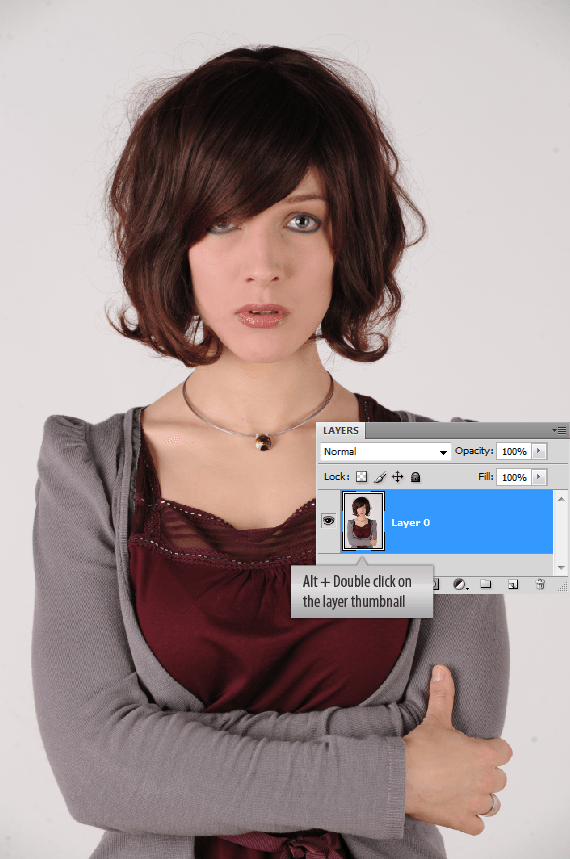
Here we have the single most important stock image for our design. I liked the look of her, she is a bit worried, uncertain and concerned, you know I thought this is a good one for our purpose. It has nice and soft tones, no strong shadows and a bit mild, it looks we can play a bit.

img(3)


Step 4

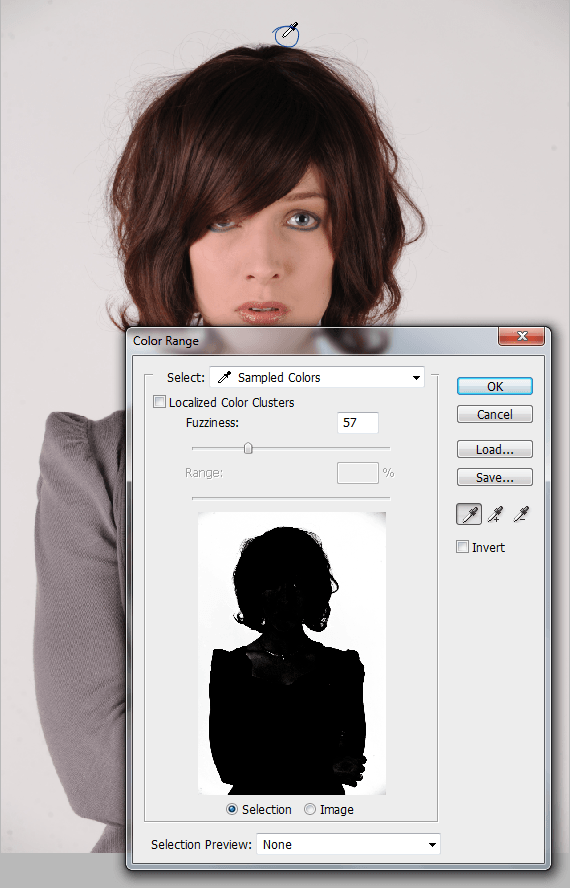
First of all we need to isolate her from the background. We can use different Tools for this purpose. But I am going with the Color Range command (Menu > Select > Color Range). It does a great job when selecting plain backgrounds. Load up the Color Range box, sample the background color using the color picker. You can see the thumbnail of the image inside the Color Range box, the white part in the thumbnail represents the area selected by the command. You can also see some grey areas left on the corners and on the subject. We will deal with it in the next few steps. Press Ok to confirm.

img(4)


Step 5

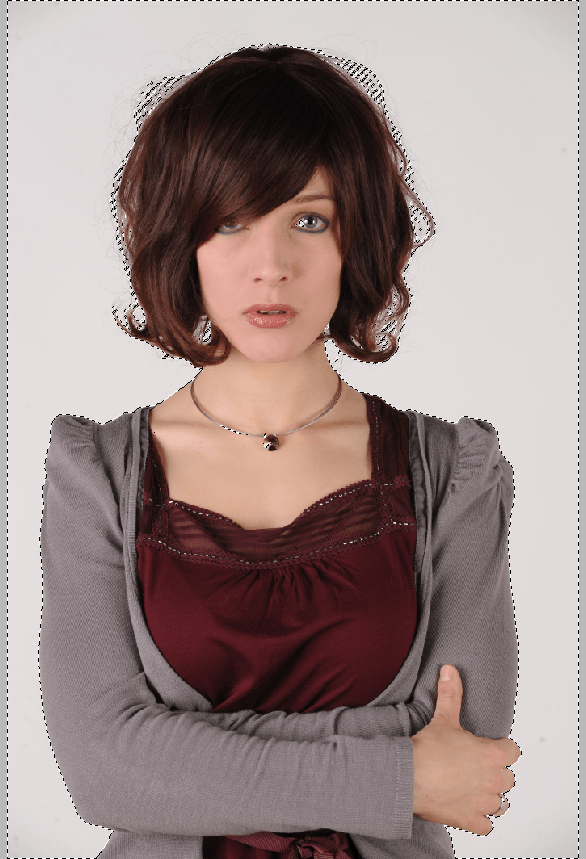
Your selection should look something like this. The color range command does a decent job.

img(5)

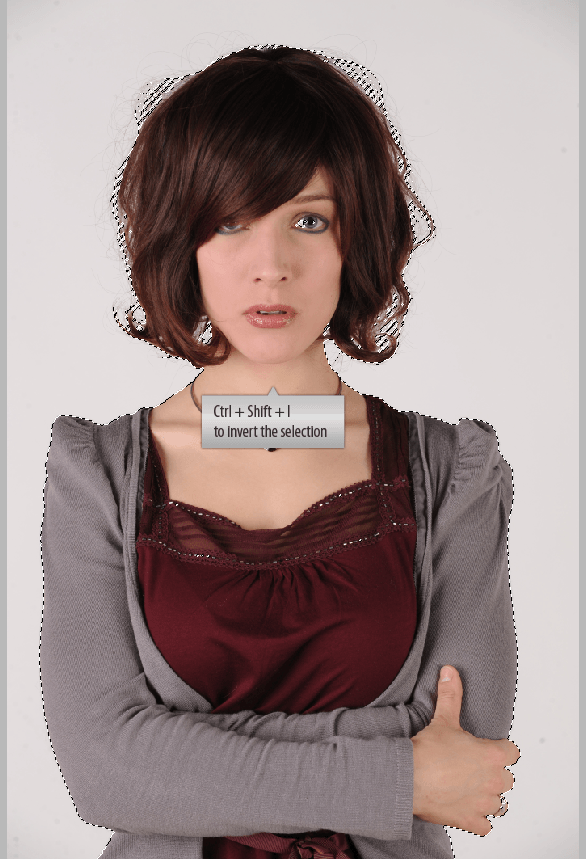
Invert the selection (Ctrl + Shift + I). This will now select the model.

img(6)


Step 6

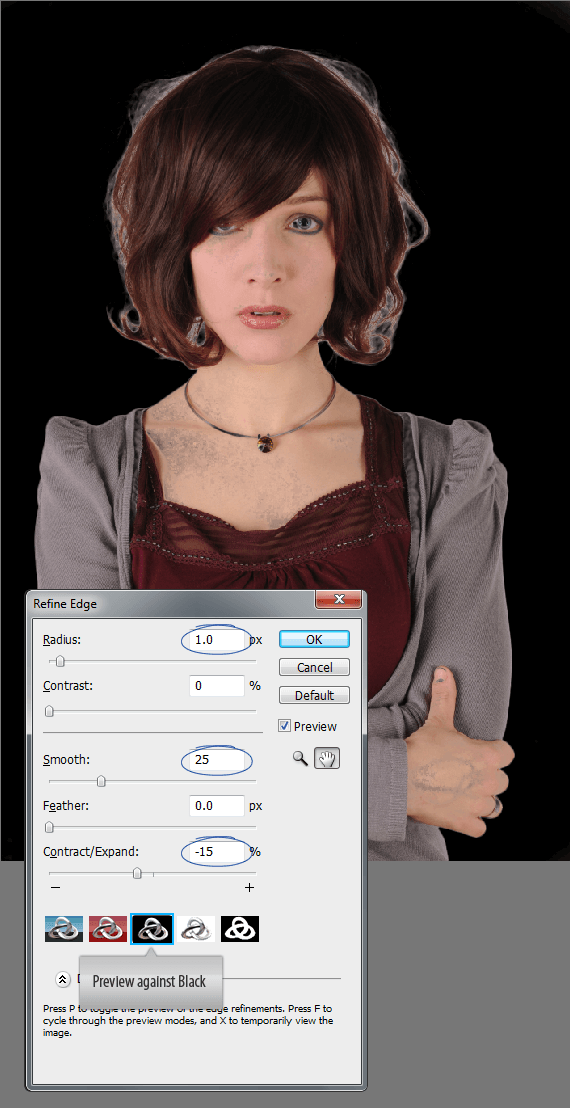
Let’s fine tune our selection using the powerful Refine Edge command. (Menu > Select > Refine Edge or just press Ctrl + Alt + R). It’s like a one stop solution. We can contract or expand the selection, feather the selection, smooth it and so on. Click on the On Black thumbnail which lets you the preview the selection against a black background. I slightly smoothed the selection and contracted it a bit. Press OK when you are done.

img(7)


Step 7

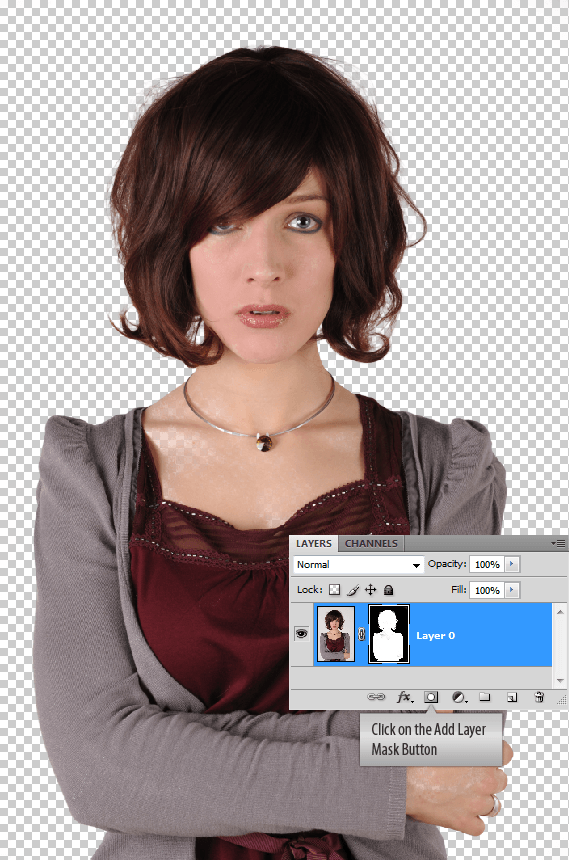
We just refined our selection. So let’s use it to mask out the model. While the selection is on, click on the Add Layer Mask button located at the bottom of the Layers Palette.

img(8)


Step 8

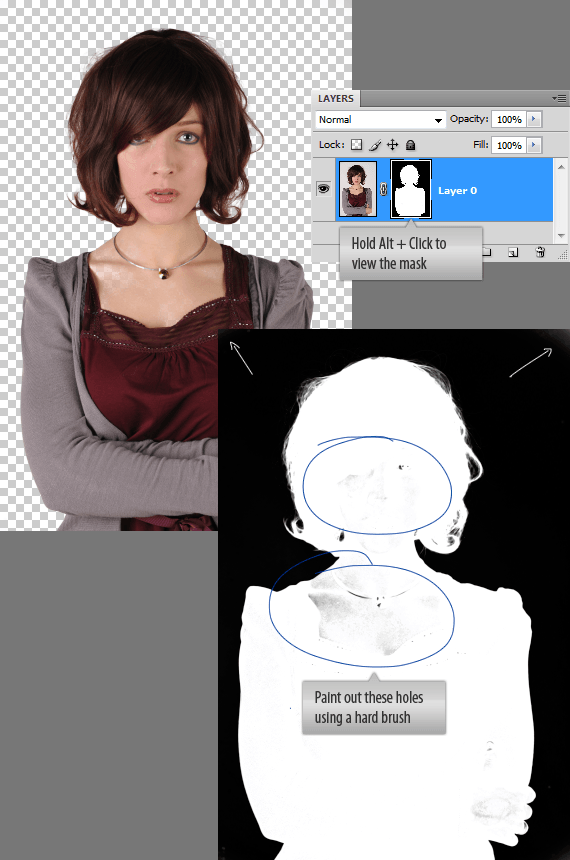
Now let’s deal with the holes in the mask. To view the mask hold Alt key and click on the layer mask thumbnail. Now you are inside the mask. Notice, there are some grey areas inside the white area and at the corners of the mask. Those are holes and we need to get rid of them. Pick a hard brush, color set to white and paint out. Now change the brush color to black and paint out the corners. Make sure you didn’t left any greys.

img(9)

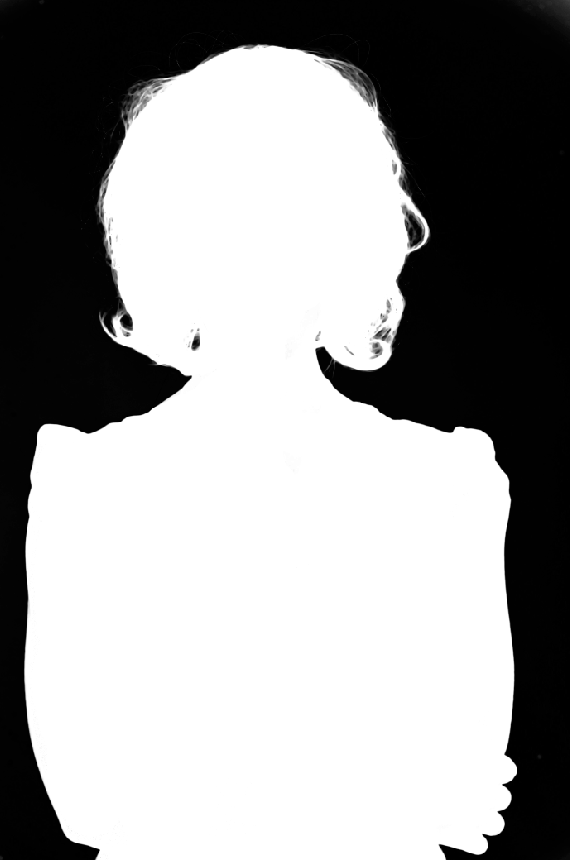
Here is the perfect mask after the corrections.

img(10)


Step 9

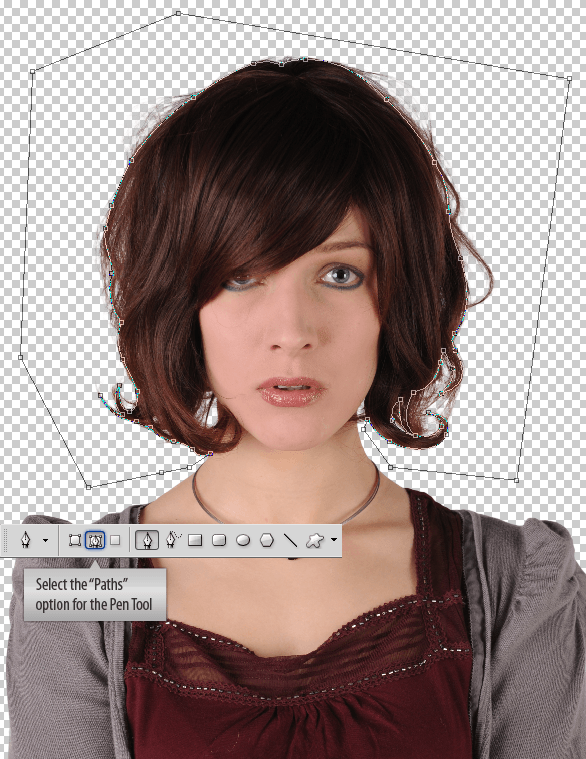
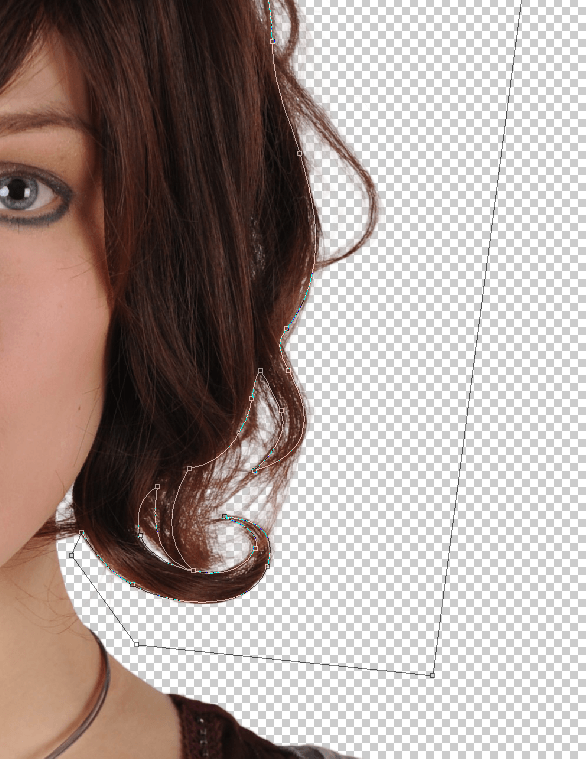
Examine the image once again. There are lots of strands of hair which can cause problems. I want to remove them. Select them using the Pen Tool. Since lot of curves involved Pen Tool is the best choice. Select the “Paths” option for the Pen Tool on the Options Panel.

img(11)

Try to be as good as you can. Just leave of those strands of hair.

img(12)


Step 10

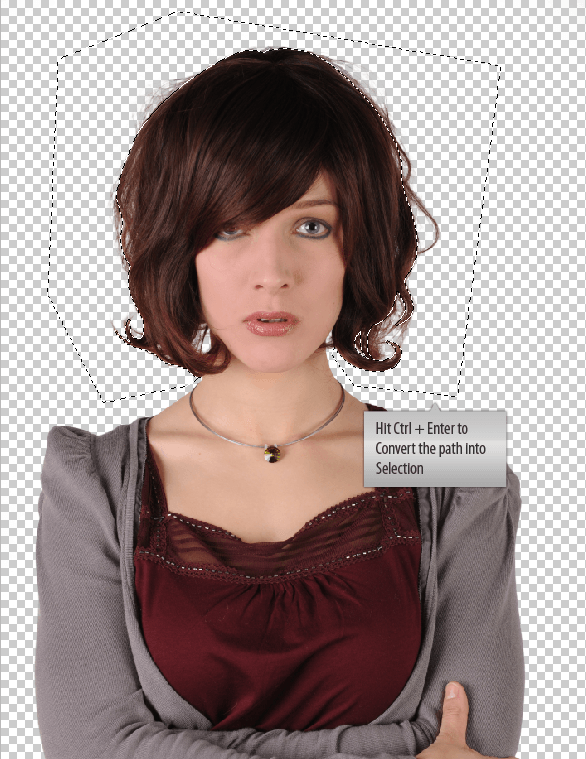
If you finished drawing the path. Convert it into a selection. Hit Ctrl + Enter or just right click on the path and choose Make Selection.

img(13)

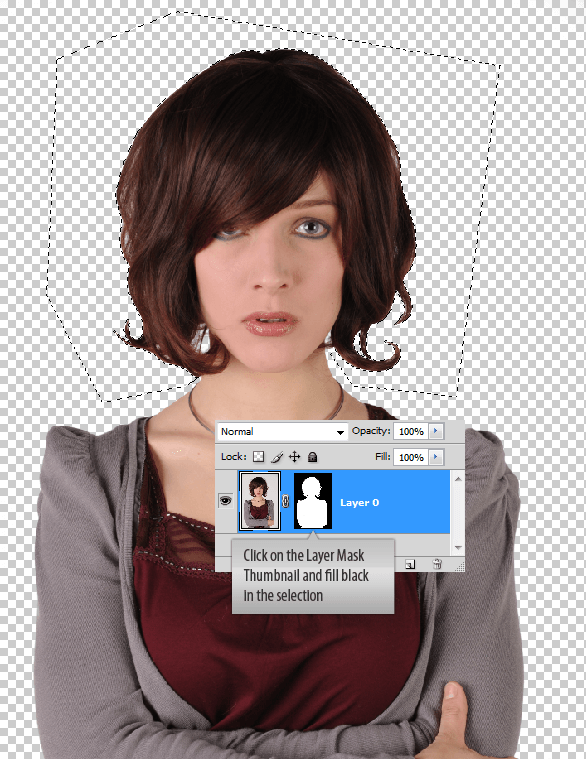
Now use the selection to hide those strands of hair. Remember we already have a mask associated with the model. Now click on the Layer Mask. Set the foreground color to #000000 and hit Alt + backspace to fill the selection. That is the great thing about layer masks. We can hide or reveal as we need! totally non destructive.

img(14)


Step 11

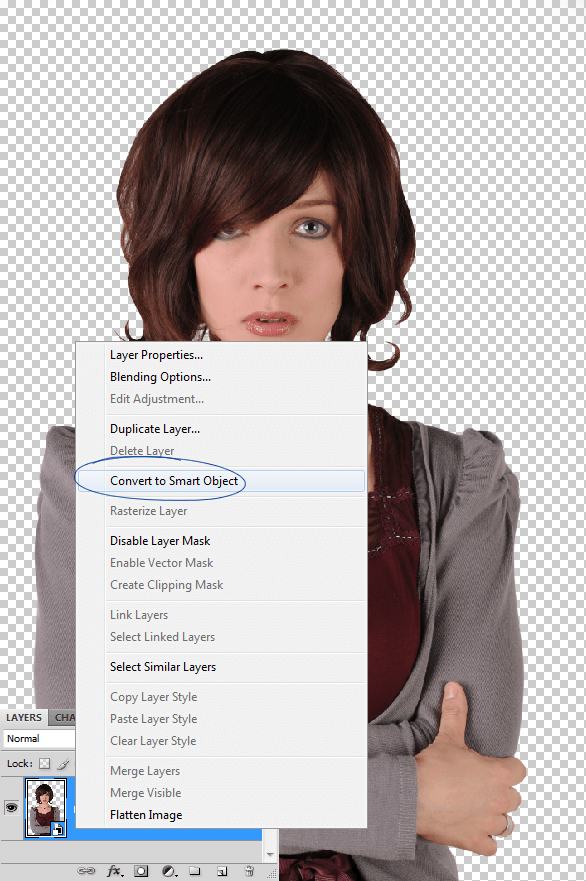
One final step before we drag the model into our main document. Convert this layer into a smart object. Right click on the layer and choose Convert to Smart Object from the context menu. This is just a good practice with numerous benefits. we can transform smart objects freely and apply filters to them without destroying the original, can apply layer masks to them and all those good things. And at any point of time we can revert to our original image.

img(15)


Step 12

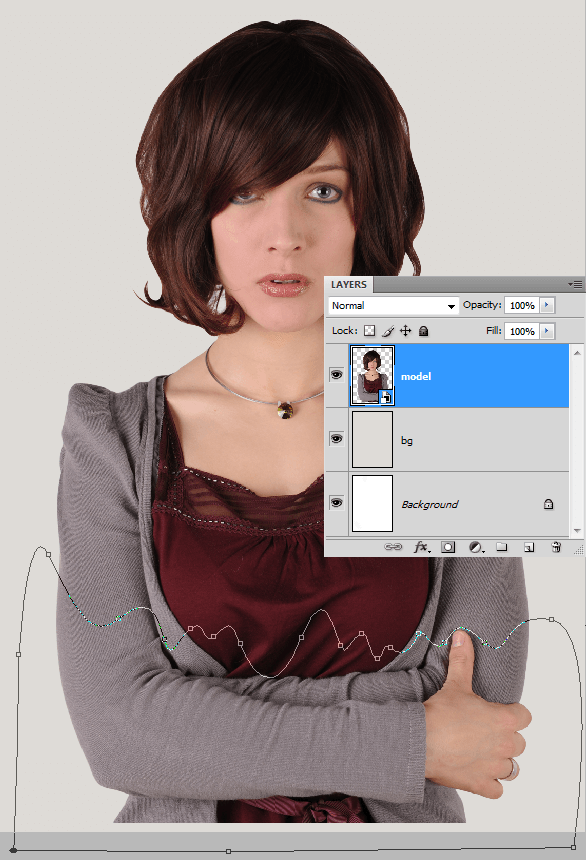
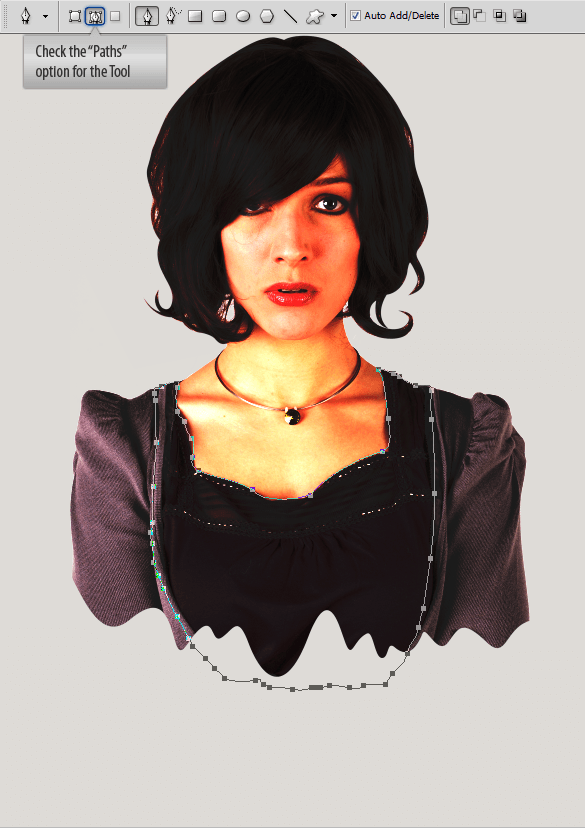
Ok we are done with the model and we are ready to go. Drag the model smart object layer into the main document. You need to resize her and position her properly on the canvas. We are not going to use the whole of the image. Hide the bottom portion of the image. Grab the Pen Tool and make the selection. Make it a bit organic with curves. It should look something like the below one.

img(16)

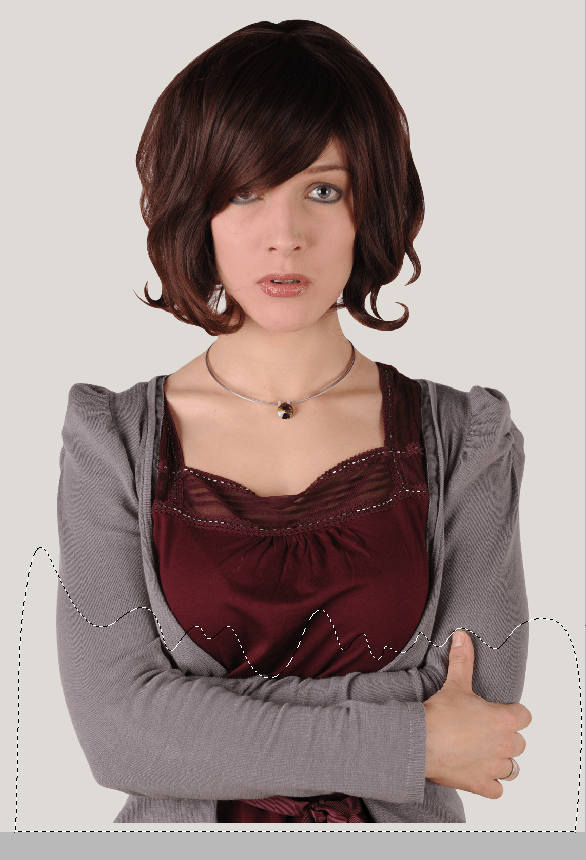
Ctrl + Enter to turn the path into a selection.

img(17)


Step 13

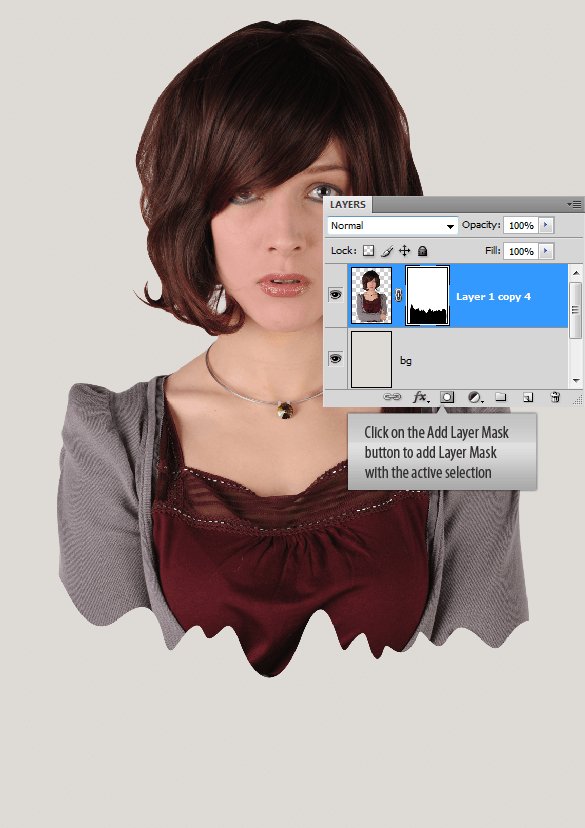
Add Layer Mask with the selection like earlier.

img(18)


Step 14

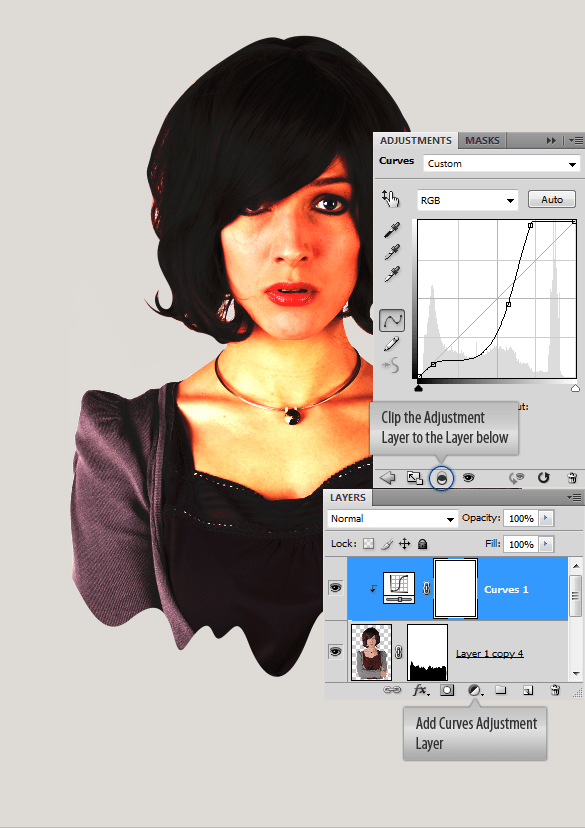
Here everything is going to happen. We are going to create the mood, you know that is a bit retro and set the tone for us. Add a Curves Adjustment Layer above the model layer. Modify the curve to get the below result with nice saturated tones. If you feel we are abusing it, don’t worry it’s going to be fine.

img(19)


Step 15

Not so brilliant at this point. But from now on everything we do is going to make the design come alive. We progressively add different elements to our design. Remember we are aiming for some organic look with a retro feel in terms of color and shapes. We are not after nice round smooth finishing. A mix of all those elements would do the job. So keep in mind our objective so we can abide by it.
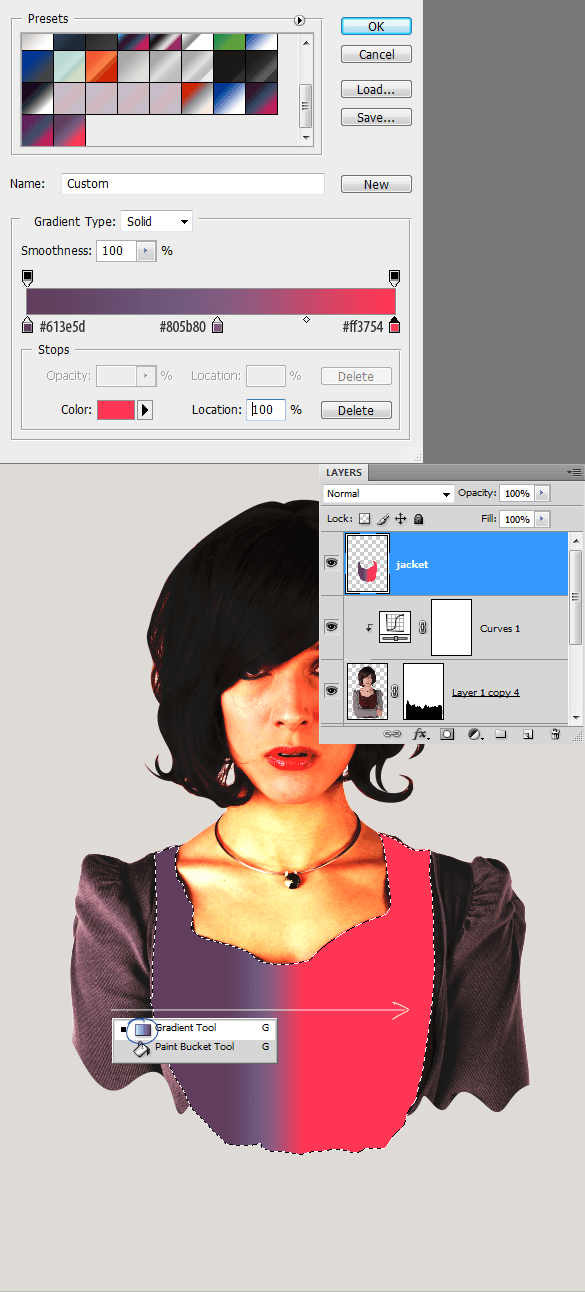
Lecture is over, just grab the Pen Tool and draw this outline. This is going to serve her jacket. Remember don’t make a perfect selection we are not looking for it.

img(20)

Convert it into a selection. Create a new layer above the model layer. Create this gradient in the gradients palette. Draw the gradient inside the selection.

img(21)


Step 16

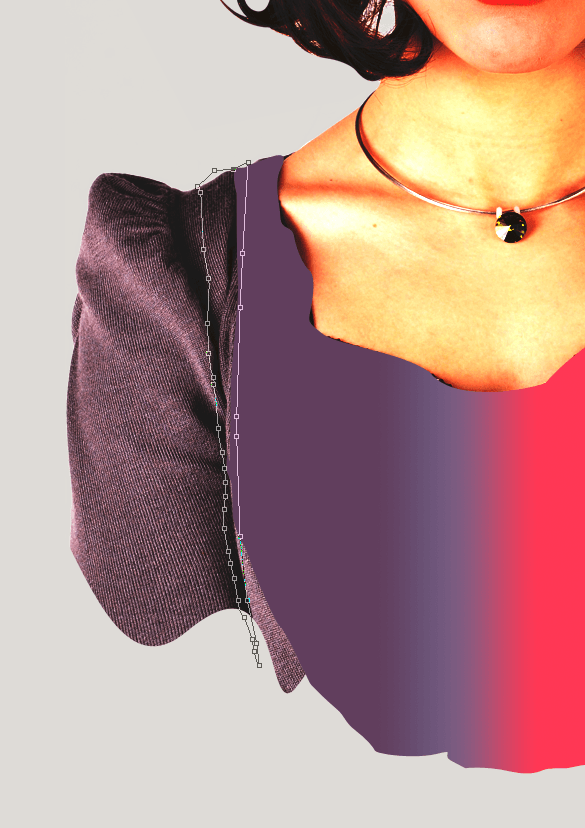
Draw another shape with the Pen Tool.

img(22)

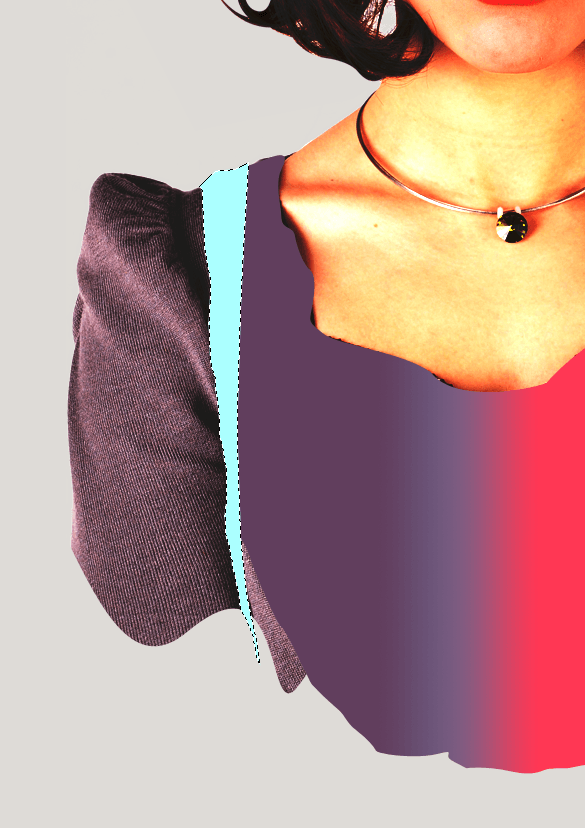
Convert into selection and fill color.

img(23)


Step 17

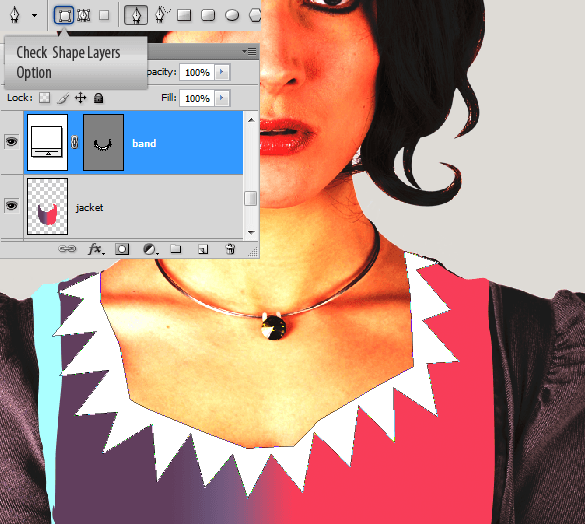
Draw this shape using the Pen Tool just above her jacket. Select the Shape Layers option on the Options Panel before you start drawing. Shape layer is defined a vector path, so it is vector. We can do lot of things with it.

img(24)

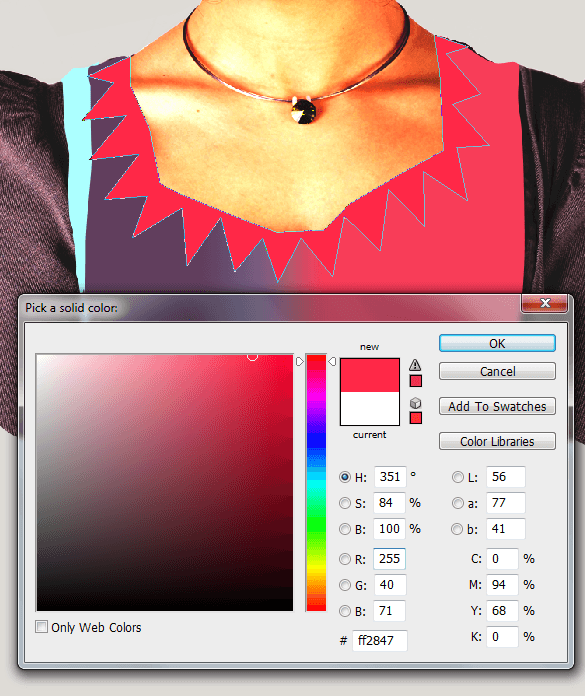
Double click on the shape layer thumbnail. Set the color to a nice pinkish red (#ff2847). This is one of those benefits comes with the shape layers.

img(25)


Step 18

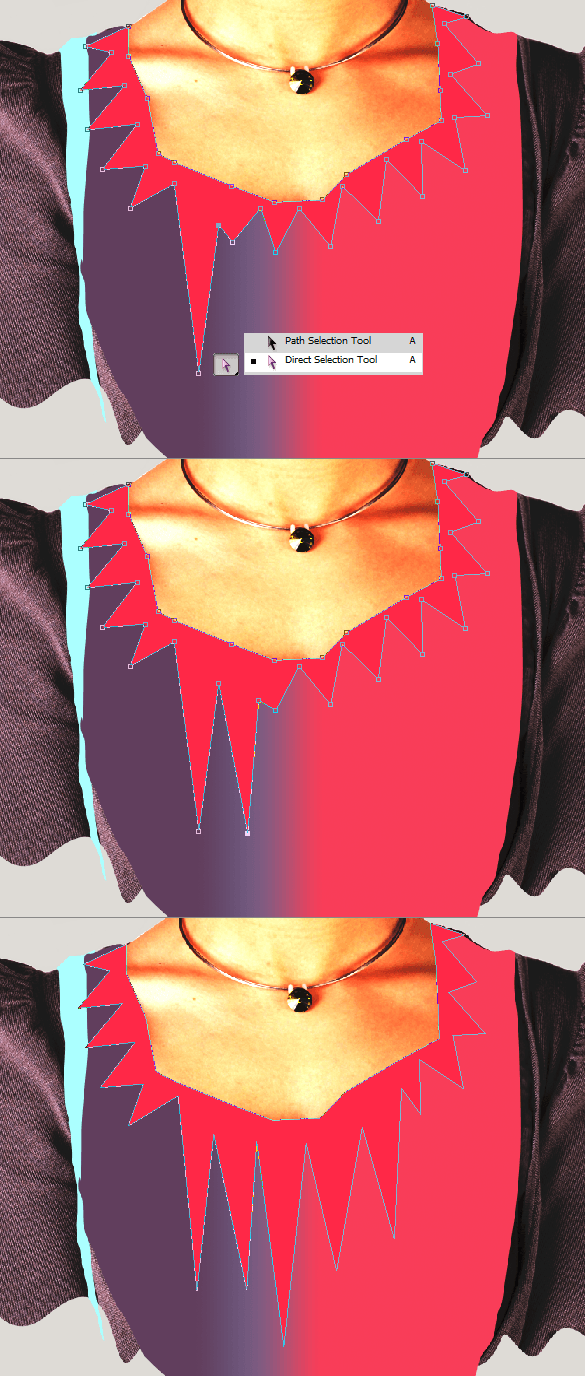
Now Make the shape more interesting. Select the Direct selection Tool. Click on the Vector Mask of the shape layer. Now you can grab those anchor points and work with them. Pull some of the anchor points downwards until you got the desired look.

img(26)


Step 19

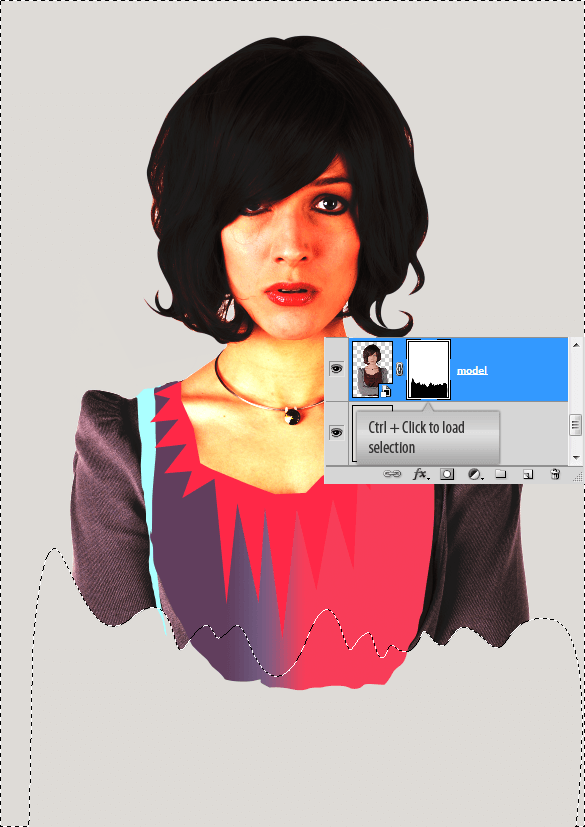
We have some work in Illustrator. And we need to take the model into Illustrator. To do this Ctrl + click on the model’s Layer Mask. You have the selection now, press Ctrl + C to copy.

img(27)


Step 20

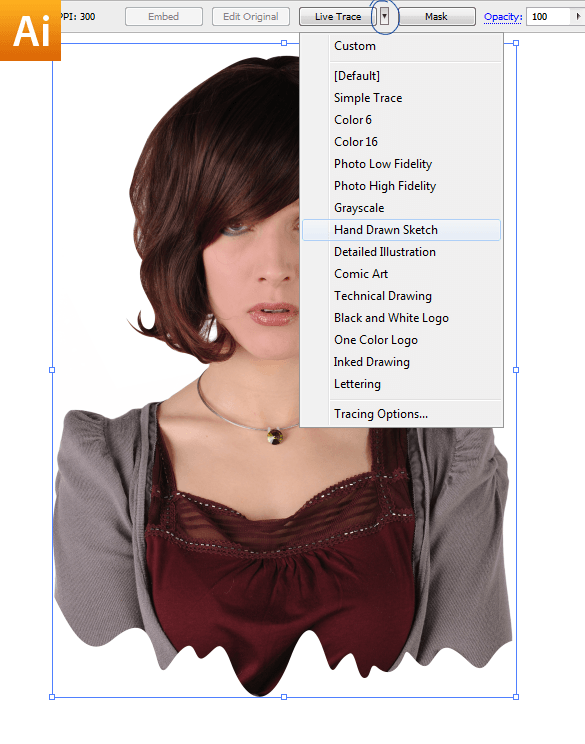
Now open up Illustrator, create a new document and press Ctrl + V to paste. Select the image. On the Options Panel you can find Live Trace button. Click on the small triangle next to it and you will get dropdown menu with tracing presets. Choose Hand Drawn Sketch from the list.

img(28)


Step 21

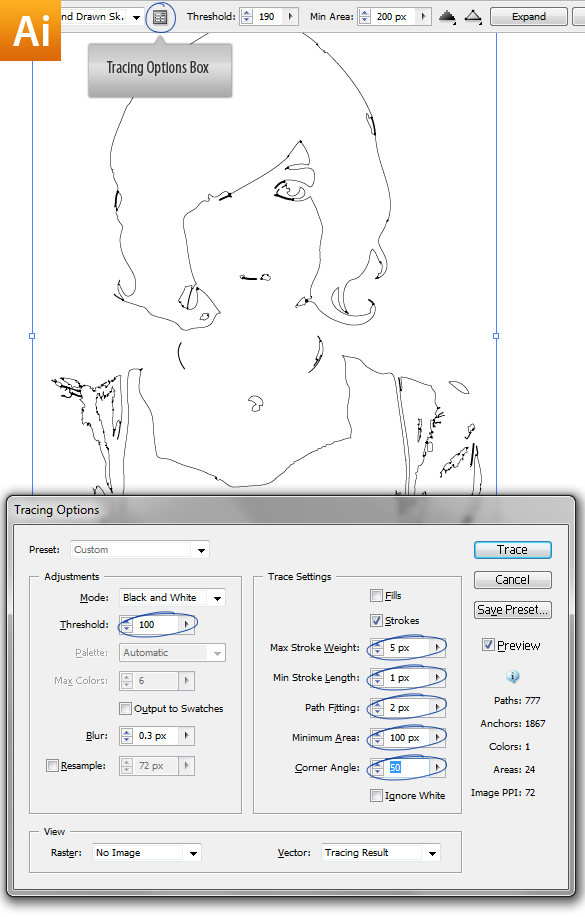
Once the tracing is completed you can fine tune the trace using the Tracing Options box. which can be found on the Options Panel.

img(29)


Step 22

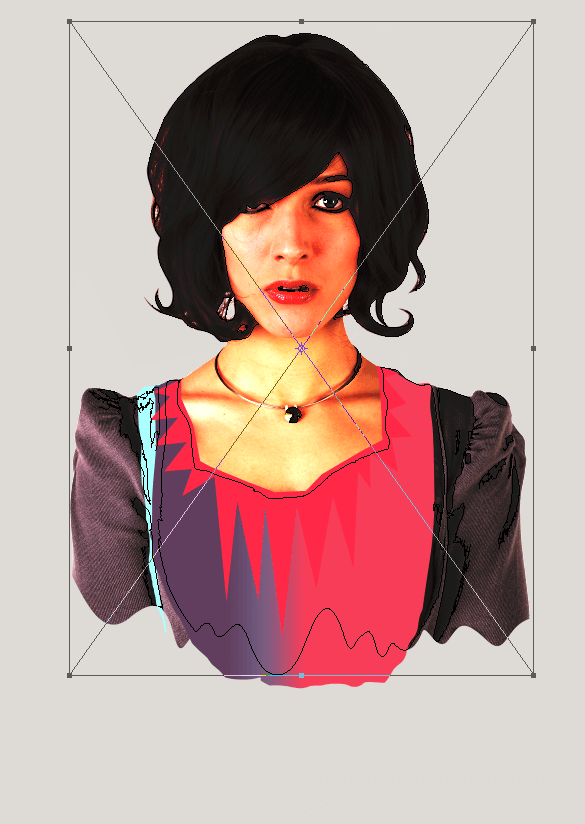
Copy and paste the trace into Photoshop. We can simply copy and paste items into these programs so easily and they work very well together. Now Place the trace layer the model layer.

img(30)


Monday, February 25, 2013

Site Updates

Site Updates


30 Serpentine logos for Chinese New Year

Posted: 24 Feb 2013 06:15 PM PST

Inspirations
Check out 30 cool snake logos!

Friday, February 22, 2013

Photoshop Tutorials: 18 of the Best Freeware Photoshop Plugins That Actually Work

Photoshop Tutorials: 18 of the Best Freeware Photoshop Plugins That Actually Work

Link to Photoshop Tutorials

18 of the Best Freeware Photoshop Plugins That Actually Work

Posted: 21 Feb 2013 01:38 PM PST


Photographers

There are LOTS of photography plugins for Photoshop. Unfortunately, many of them were too outdated or did something that wasn’t very useful/could already be easily done in Photoshop. But out of the ones that we liked, there were two that stood out: Boundary Noise Reduction and ReFocus DC. Boundary Noise Reduction is a good noise reduction plugin that rivals their expensive competitors and ReFocus DC can fix your blurred photos with amazing results.

Perfect Effects 4 Free

Apply one of 73 photo effects to your photos and combine them for even more effects! This plugin lets you apply these effects with control over masking, painting, and blending. The effects look nice but they don't quite match up to many of the free retro Photoshop actions. Downloading this plugin requires your email address which will automatically subscribe you to their newsletter. You can opt out of the newsletter at any time. After installation, you can access it by going to Window > Extensions > onOne.

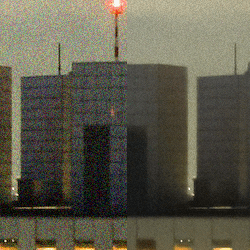
Freeware Boundary Noise Reduction

This is the freeware version of the Boundary Noise Reduction plugin used to reduce noise in your photos. This isn't a trial or watermarked software; it works just like the commercial version except it's simplified with less controls. To install, copy the files in the ZIP file to your Photoshop\Plug-ins\Filters folder. The filter can be accessed in the Filter > Colormancer menu. The results were superior to Photoshop's noise reduction filters and it's really easy to use. Reducing just the noise can make your image look soft but the filter can bring back some of the original B&W details to keep your image sharp.

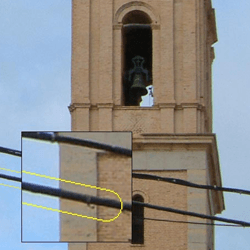
Wire Worm

Although there are already many tools in Photoshop that lets you remove powerlines, you might benefit from this plug-in made exclusively for removing wires. Wire Worm works pretty similar to the Clone Stamp tool with its own color matching algorithm. I found Wire Worm to be easier than the Clone Stamp tool and it gives better results too! I just wished there was a zoom tool because the preview area is stuck to 100%. To install, copy the file to your Photoshop\Plugins\Filter folder. This plugin only works on the 32-bit version of Photoshop (not the 64-bit).

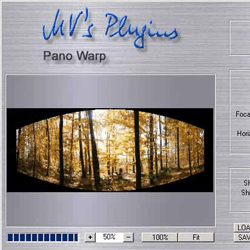
Pano Warp

Photoshop is a great tool for creating panoramas but as with many panoramas, they can look distorted. To fix it, you can use this Pano Warp plugin which applies distortion corrections so that the curved lines in your panoramas look straight. It works much different than the Lens Correction filter. To install, copy the file to your Photoshop\Plugins\Filter folder. Unfortunately, this plugin is also only compatible with 32-bit version of Photoshop (not the 64-bit).

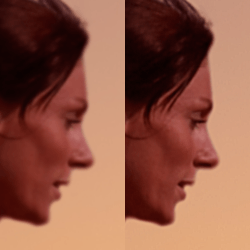
ReFocus DC

Every photographer has a nice photo ruined by misfocusing. If you need to rescue that photo, this plugin will deblur your photo. It won't magically fix the most blurry photo and it isn't made for motion blur, but for small blurs, it does a surprisingly good job. I did some tests and used the Gaussian Blur filter to give it a 1px blur and it was able to deblur it with great results (see thumbnail on the left). For images with motion blur, the streaks are still there but the sharpness is improved and you can see much more details with it deblurred. This plugin only works with the 32-bit version of Photoshop and you can install it by copying it to your Photoshop\Plug-ins\Filters folder.


Painters

One of the best tools for painters is NKS5. This Photoshop extension gives you access to realistic media brushes and is one of the most popular plugins for digital artists.

NKS5 Natural Media Toolkit

This is a must-try for all painters out there! This plugin gives you a panel full of different pencils, pens, and markers. You can even simulate a variety of real papers and add preset or evenly spaced guides. Installation is done through Adobe Extension Manager; a new tool to manage all your plugins/extensions. Once installed, go to File/Photoshop > Scripts > NKS5 Install. Then, go to Window > Tool Presets. Uncheck the "Current Tool Only" option. You can begin using the tool now by going to Window > Extensions > NKS5.

Oilpaint Effect in Pixel Bender

The same oilpaint filter introduced in Photoshop CS6 is available for you if you have Photoshop CS5. This is the same thing and you can install it using the Pixel Bender plugin.


Graphic Designers

Graphic designers have access to a great number of Photoshop plugins. There are several great layout plugins and way too many filter effects (mostly cheesy effects). We picked only the best filter effects to include in this list and our favorite is Filter Forge and Sinedots 2.

Mr. Stacks

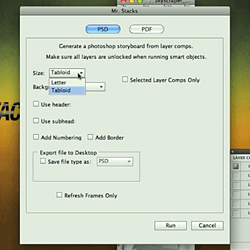
Creating storyboards or PDFs of your photos but don't have the time to do it manually? Mr. Stacks is here to save the day! He can turn your PSD into paneled storyboards or PDFs with just a few clicks. Installation is done through Adobe Extension Manager. To access the plugin, go to File > Scripts > Mr. Stacks.

Tych Panel 2

Wedding photographer Lumens Bröllopsfotografi realized the world was missing a good tool for creating diptychs so he went out to created his own Photoshop plug-in. This plug-in lets you lay out photos side-by-side in your own way – and it's very easy to use! It works with Smart objects and layer masks and has Adobe Bridge integration. Installation is done through Adobe Extension Manager.

Sinedots 2

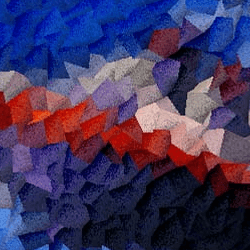
Looking for a way to create abstract waves? Sinedots 2 uses simple sinus calculations to create them. Experiment with this plug-in and see what kind of abstract waves you can get! To install, copy the 8BF file to your Photoshp\Plug-ins\Filters folder. This filter is only available for Windows and the 32-bit version of Photoshop. For beginners, set your background color to black before running the filter. You can find the filter in Filter > DragonFly > Sinedots 2. The interface is quite technical and I have no idea what I'm doing, but I just keep clicking the randomize button until I get something that I like. The only problem is that I can't seem to change the color but that can be done later with the Hue/Saturation tool.

Filter Forge

Filter Forge Freepacks

Filter Forge has many free filters effects that are highly customizable. They have freepacks that lets you create metal, vintage photo effects, picture frames, and more. You can even make the filters seamless! My favorite is their Photo Effects freepack which contains many great photo effects that are highly customizable. On high-res photos, I frequently get an error message but everything seems to be working fine when I close it – not sure what's going on there. Some of the more complicated filters can take a few minutes to run.

Stereogram Lab Filter

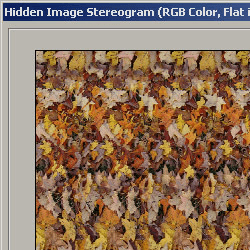
Remember those stereogram pictures you used to look at when you were a kid? This plugin will turn your photos into stereograms automatically. It's also a useful tool to create seamless photo textures! Unfortunately, we weren't able to test this plugin because it only works in the 32-bit version of Windows.

Mosaic

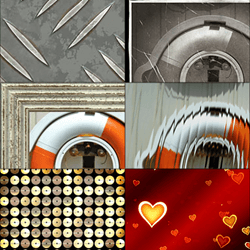
Photoshop has a few mosaic filters but if you're looking for a different one with more flexibility, Mosaic is what you're looking for. You can generate square, hexagon, and octagon mosaics with more adjustable settings than the ones in Photoshop. The interface looks a little dated and installation requires entering your name & email for a serial number (even though it's a free plugin, it's required). If you keep the effects simple, you can create some great looking mosaics.


Web Designers

Some of the newest Photoshop plugins are layout and file handling plugins made for web designers. The most astonishing one is CSS3ps; this plugin works better than the one offered in Photoshop CS6.1 and is a must-have.

CSS3Ps

If you're a web designer and you don't have this plugin, download it now! CSS3Ps turns your layer styles into CSS styles and the results are amazing. It can generate shadows, gradients with transparencies, and more. This plugin will speed up your coding time and works better than the new "Copy CSS" feature in Photoshop CS6.1. Installing is through Adobe Extension Manager and to use it, you go to Window > Extensions > CSS3Ps. Select the layers that you want to generate the CSS code for then click on the CSS3Ps logo in the CSS3Ps panel. It will open your browser to their website that will generate the website for you. The downside to this compared to Adobe's version is that you have to wait around 15-20 seconds before you get your code – but that's worth it for the better results.

GuideGuide

If you want to create grids based on a grid-system, it can be a lot of work. Thankfully there's GuideGuide that solves this problem. Create your own guides using your own measurements and save/load them for later use. Installation is done through Adobe Extension Manager.

Cut&Slice me

As you may know, Photoshop's slicing system isn't the easiest to use. Here's where Cut&Slice me comes in; organize your layers in the way it tells you to then export them all by clicking a button. Designing mobile apps? Cut&Slice me even lets you export at different resolutions for the never ending list of mobile screen resolutions. This plug-in will save you lots of time that you can spend on more valuable tasks – such as eating cookies. This extension is easily installed through Adobe Extension Manager.

SuperPNG

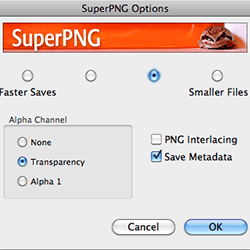
Are you all about optimization? SuperPNG can save smaller PNG files and gives you extra options such as using your alpha channel as its transparency, ICC profile embedding, and metadata saving.

ICO (Windows Icon) Format

Creating favicons compatible with Internet Explorer is a 2-step process; save the image as JPG/GIF/PNG image then use one of the many websites that converts your image into a favicon. With this plugin, you no longer have to do that because you can save your image directly as an ico file.


Know another freeware Photoshop plugin?

I hope there’s a plugin here that you’ll find useful. While looking through almost every freeware Photoshop plugin, there were many that we could not include because they didn’t support Photoshop CS6 or duplicated an effect that could already be easily done in Photoshop. If you know of a freeware plugin that we missed, please let us know in the comments below – Thank you!