Pages

Pages

Thursday, January 31, 2013

Photoshop Tutorials: Giveaway: Win 1 of 3 Month-Long Subscriptions to Stock Photos at 123RF.com

Photoshop Tutorials: Giveaway: Win 1 of 3 Month-Long Subscriptions to Stock Photos at 123RF.com

Link to Photoshop Tutorials

Giveaway: Win 1 of 3 Month-Long Subscriptions to Stock Photos at 123RF.com

Posted: 30 Jan 2013 11:38 PM PST

What is 123RF?

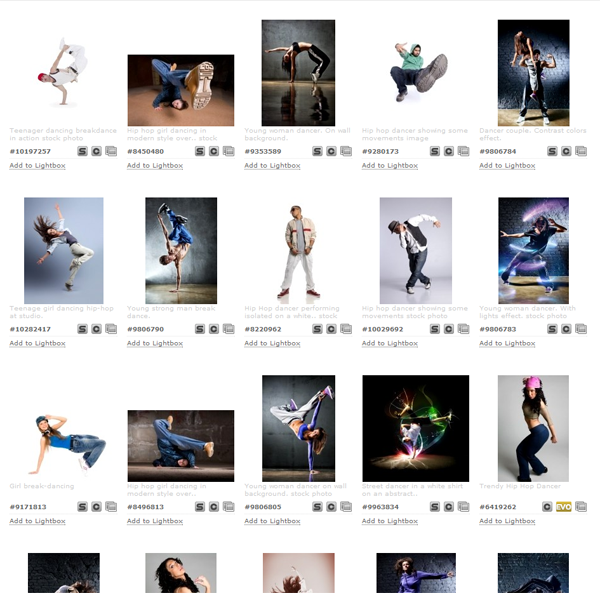
123rf.com is the perfect source for high quality stock photos. They offer a wide array of fresh and usable images so you are sure to find what you need for your project. Plus, you can purchase photos at an affordable rate, or you can browse their growing library of free stock photos!

image

123RF has an amazing collection of stock photos you can use to create amazing Photoshop photo manipulations. Their website has a simple interface and loads quickly so you can find your images faster.

image


Enter to Win!

Fill in the form below to enter for your chance to win one of three subscriptions. The subscription lasts for 30 days and lets you download up to 150 XXL images per month. There are three prizes to be won and only one entry per person is permitted. Contest ends on Monday, February 20, 2013.

Wednesday, January 30, 2013

Photoshop Tutorials: Quick Tip: Access the Hidden Photographic Toning Gradients in Photoshop CS6

Photoshop Tutorials: Quick Tip: Access the Hidden Photographic Toning Gradients in Photoshop CS6

Link to Photoshop Tutorials

Quick Tip: Access the Hidden Photographic Toning Gradients in Photoshop CS6

Posted: 29 Jan 2013 06:19 PM PST

The Photographic Toning Effects

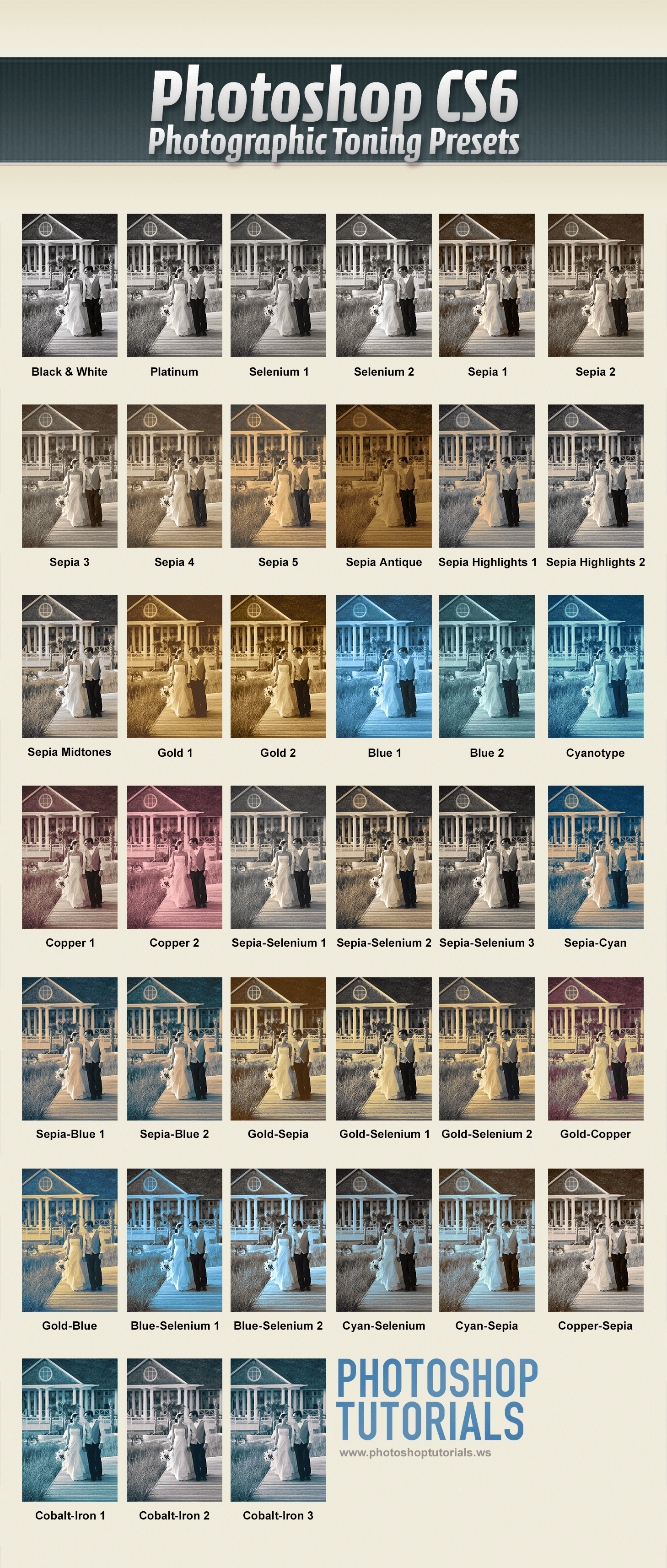
Photoshop CS6 comes loaded with 39 presets to simulate traditional darkroom toning and split-toning effects. Click on the image to download the high-res version you can print.

Split Toning Presets


Step 1

Open an image you want to split tone in Photoshop. For this tutorial, we'll be using the image below as an example.


Step 2

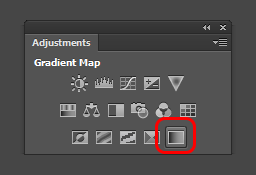
Add a new Gradient Map adjustment layer. You can do this by clicking on the Gradient Map fill layer button in the Adjustments panel (Window > Adjustments).


Step 3

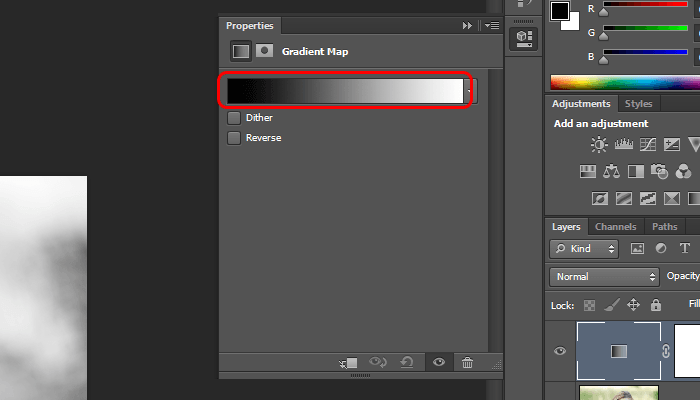
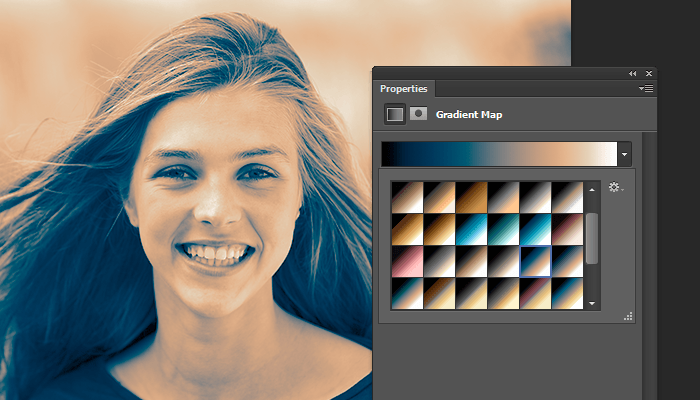
In the Properties panel (Window > Properties), click on the Gradient. This will bring up the Gradient Editor.


Step 4

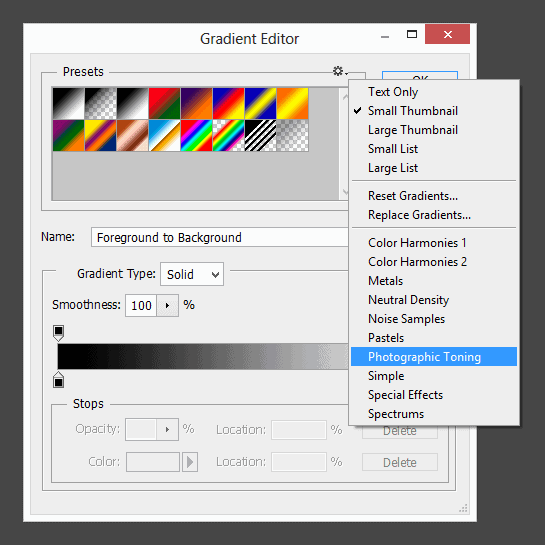
This is where the photographic toning presets are hidden. Click on the panel menu located on the top-right of the presets area then select Photographic Toning.


Step 5

Try out the different gradients to find the one that you like. Most of them will look pretty strong, but we'll minimize this in the next step.


Step 6

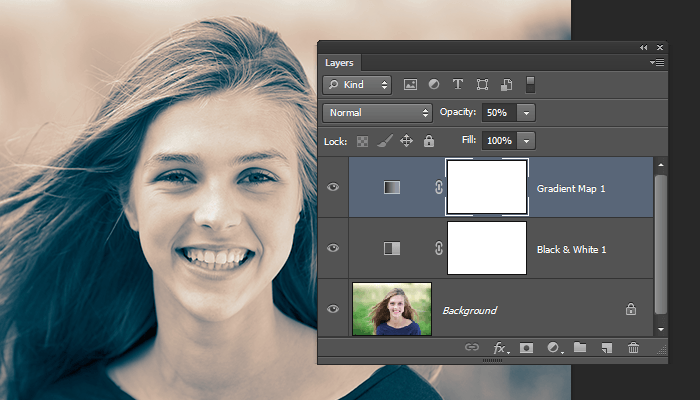
One way to reduce the look of it is to add a Black and White adjustment layer (Layer > New Adjustment Layer > Black & White). Position this layer between the two layers then adjust the opacity of your Gradient Map. Here's what ours look like with the Gradient Map at 50%.


Final Results

Split Toning

Tuesday, January 29, 2013

Photoshop Tutorials: How to Paint a Lovely Pair of Birds in Photoshop

Photoshop Tutorials: How to Paint a Lovely Pair of Birds in Photoshop

Link to Photoshop Tutorials

How to Paint a Lovely Pair of Birds in Photoshop

Posted: 28 Jan 2013 11:46 AM PST

Preview of Final Results

final result


Download the PSD

Bird Painting.zip | 18.09 MB
Download from Website

Pair of Birds Painting Photoshop Tutorial


Tutorial Resources


Step 1 (Preparing Stock)

Firstly, open the picture provided :

step1


Next, activate the pen tool in the tool panel. We will crop the umbrella from the picture. All we have to do is click on the edge of the umbrella to make a starting point anchor. Trace the edges of the umbrella with the pen tool by keeping on clicking until the path is closed. When the path is closed, right click on it to show path command option box. Choose make path selection to change the path into selection. Hit Shift+Ctrl+I to inverse the selection and then hit Del to clean the background.
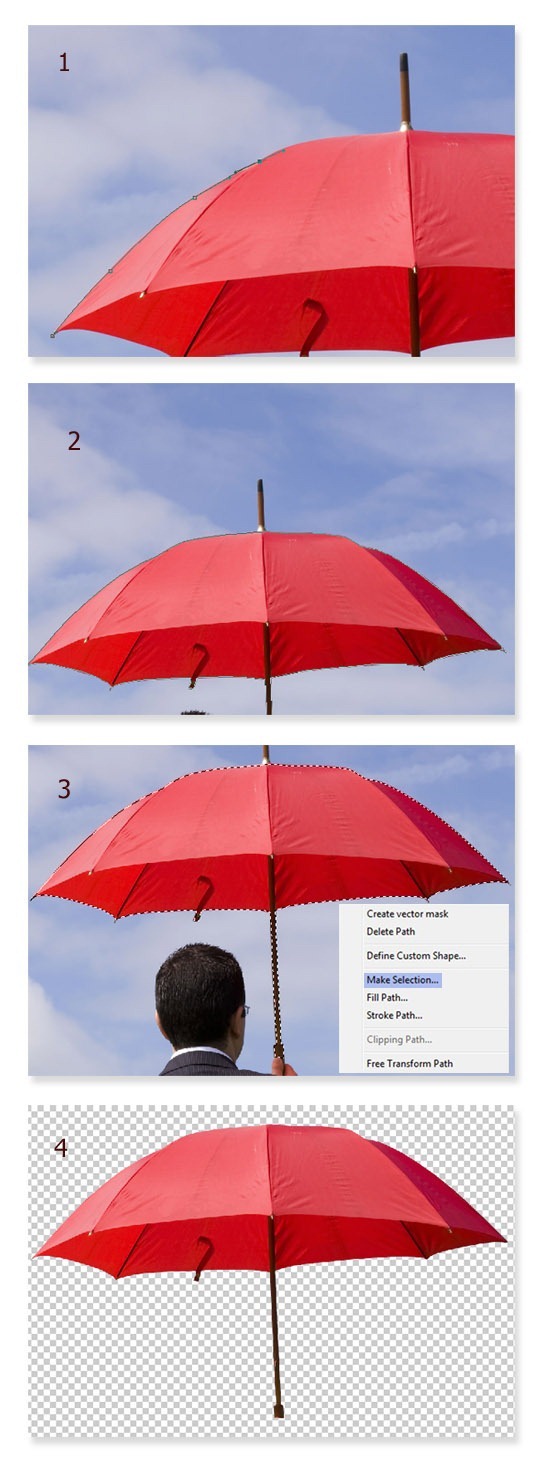
step2


Step 2 (Creating Flowers)

Now we have the umbrella with which we will create some shapes needed. In this step we will create flowers. Duplicate the umbrella. Hit Ctrl+T to activate free transform tool which is indicated by small squares as transforming points around the selected picture. Now right click on the duplicated umbrella to show transform command option window and choose Warp. Let’s tweak the umbrella to alter the shape of it by clicking and dragging to the directions needed to find desired shape. Duplicate the umbrella again and do the similar step to find the other desired shapes. See the illustration picture to guide us what to do in this step.
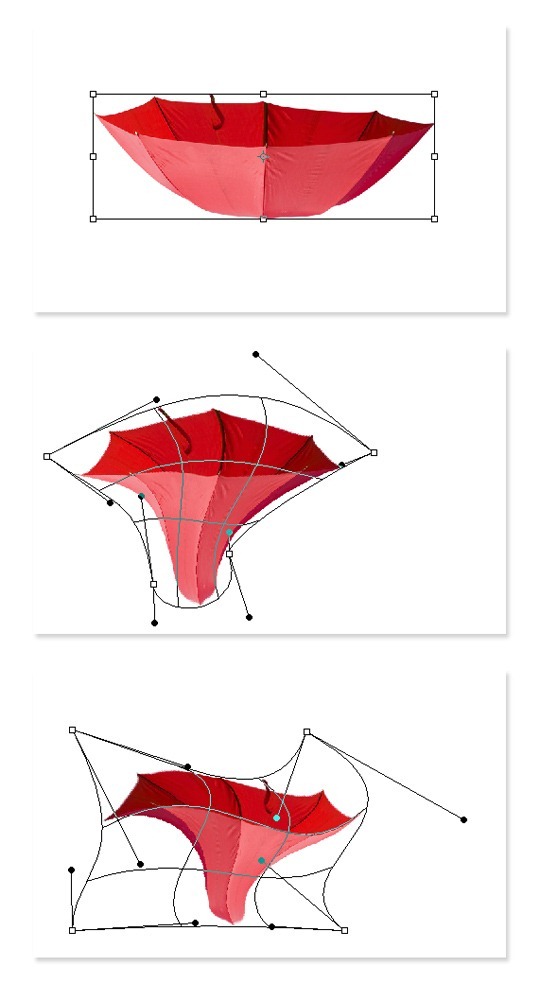
step3


After finding the flower looking like shape, we need to give it some shadow and highlight. To do this, we just use the dodge tool. Please see the illustration picture to know the setting of the dodge tool. Dodge some parts of the shape to define the highlight.
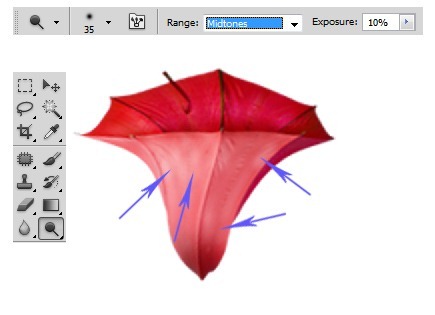
step4


Now switch to burn tool to give some shadow to the shape. Please see the illustration picture :
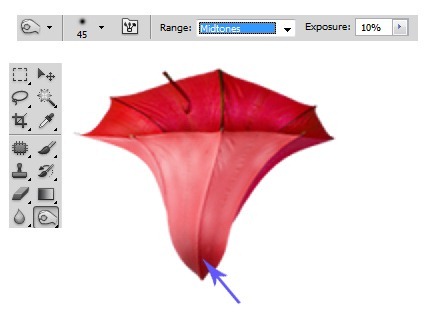
step5


Do similar ways as in previous steps to give shadow and highlight to the other shape :
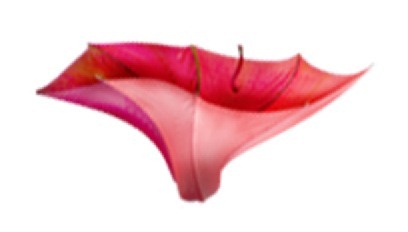
step6


Step 3 (Creating Twigs)

From this step on, we will create twigs for the flowers. To achieve this, firstly go to the cropped umbrella again and cut out the stick of it. Duplicate the cut out two times and then merge them into a single layer. Duplicate this new single layer as many times as needed.
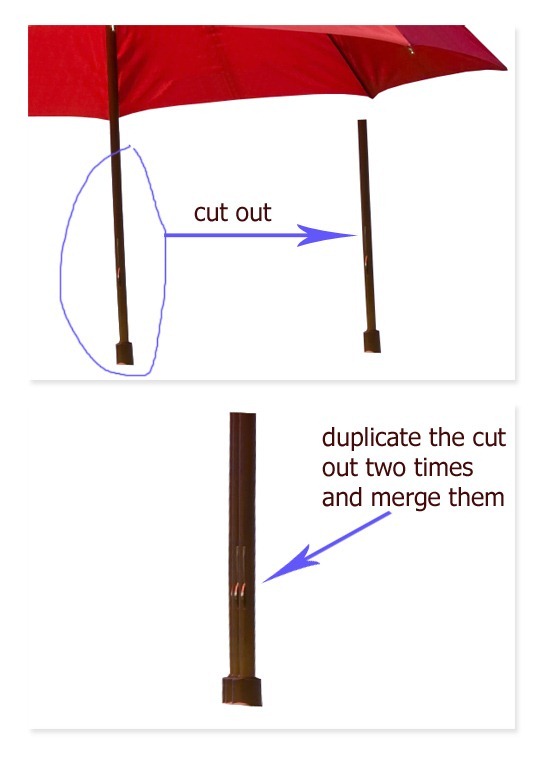
step7


Select one of the duplications and then go to filter > liquify. Choose forward warp tool and tweak the shape of picture:
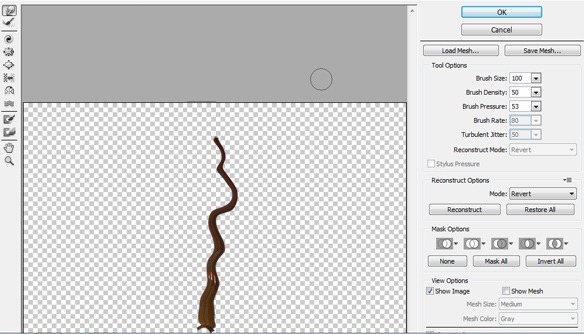
step8


Next, do similar ways to the other duplication pictures. Try to vary the shapes we are creating in order not to look uniform. Once we have created the shapes, arrange them in such position that they look like twigs of a tree. Then alter the color of the twigs by giving them an adjustment layer: hue/saturation.
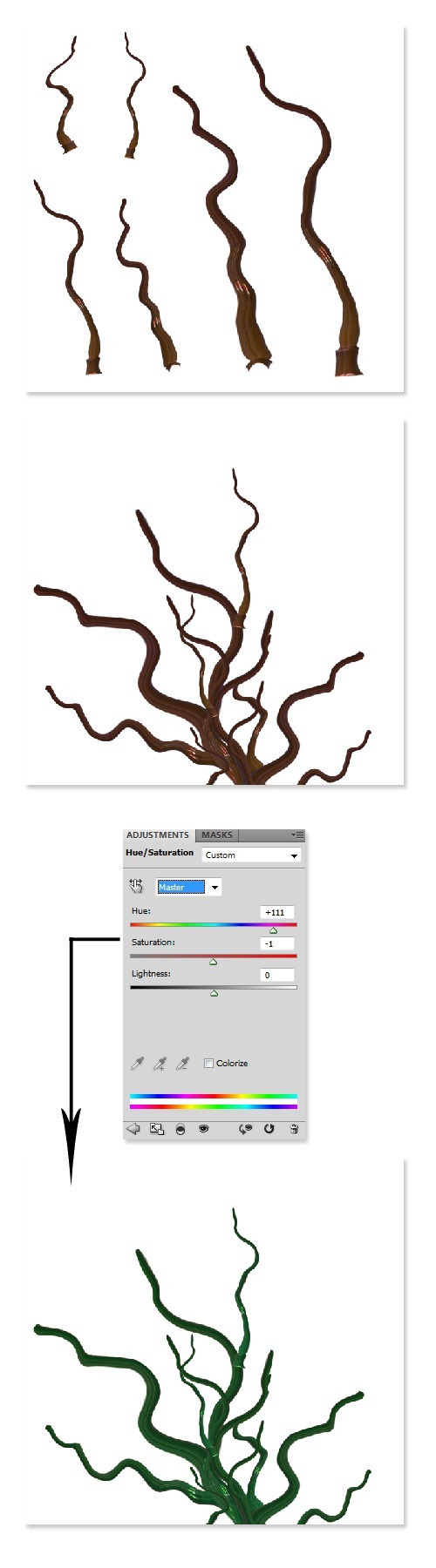
step9


Saturday, January 26, 2013

Photoshop Tutorials: Freebie: 10 Seamless Dark Concrete Textures

Photoshop Tutorials: Freebie: 10 Seamless Dark Concrete Textures

Link to Photoshop Tutorials

Freebie: 10 Seamless Dark Concrete Textures

Posted: 25 Jan 2013 01:54 PM PST

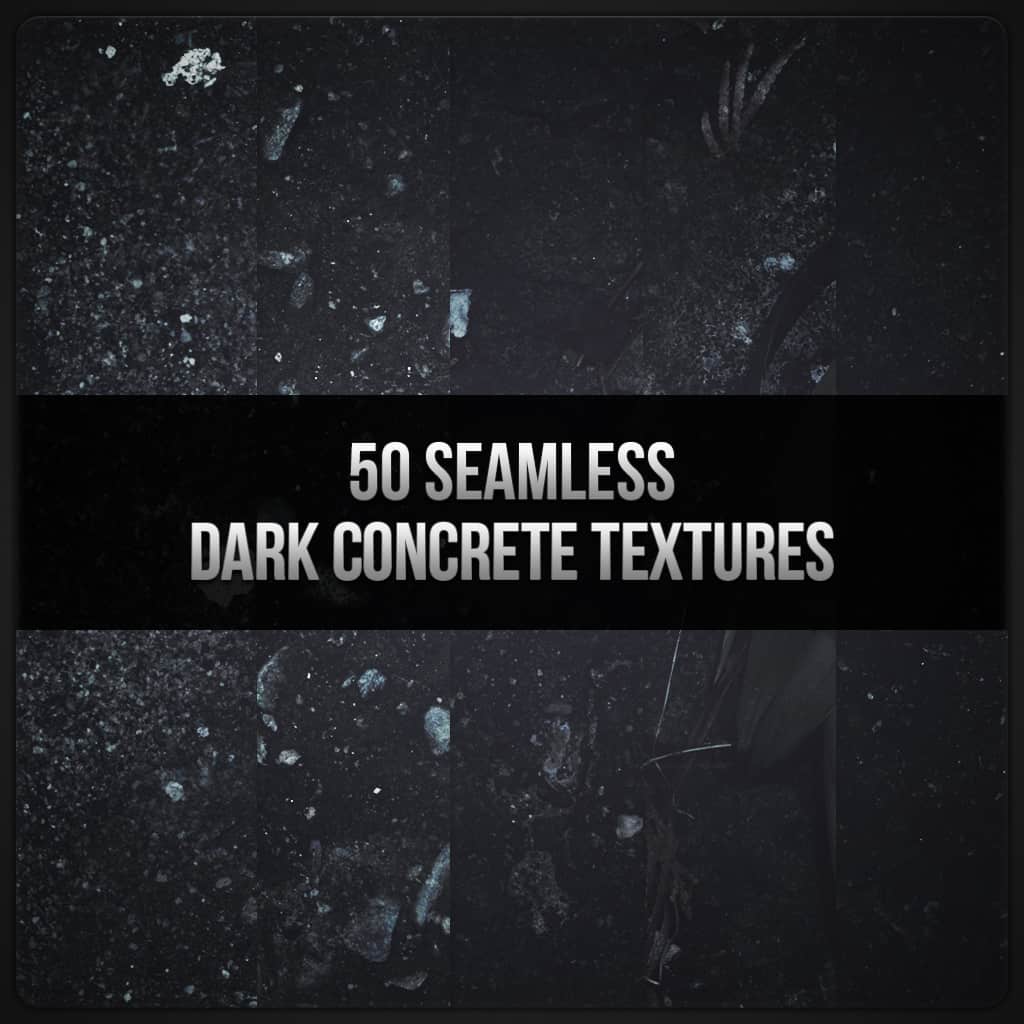
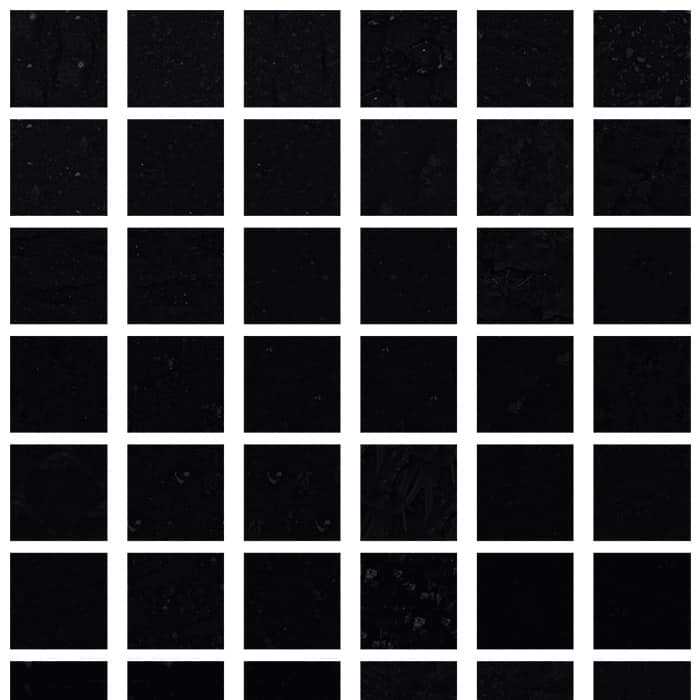
Seamless Dark Concrete Textures

Seamless Concrete Textures


Download Seamless Dark Concrete Textures

10 Seamless Dark Concrete Textures

50 Seamless Dark Concrete Textures

Wednesday, January 23, 2013

Photoshop Tutorials: Quick Tip: Emphasize or Hide Skin Flaws With One Layer

Photoshop Tutorials: Quick Tip: Emphasize or Hide Skin Flaws With One Layer

Link to Photoshop Tutorials

Quick Tip: Emphasize or Hide Skin Flaws With One Layer

Posted: 22 Jan 2013 04:37 PM PST

Step 1

Open the photo that you want to edit in Photoshop. The photo should have enough detail in the skin tones with little to no makeup.


Step 2

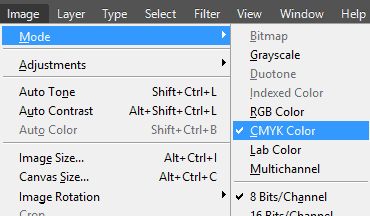
We'll need to grab the Yellow channel. Before we can do this, we have to convert the image to CMYK by going to Image > Mode > CMYK.


Step 3

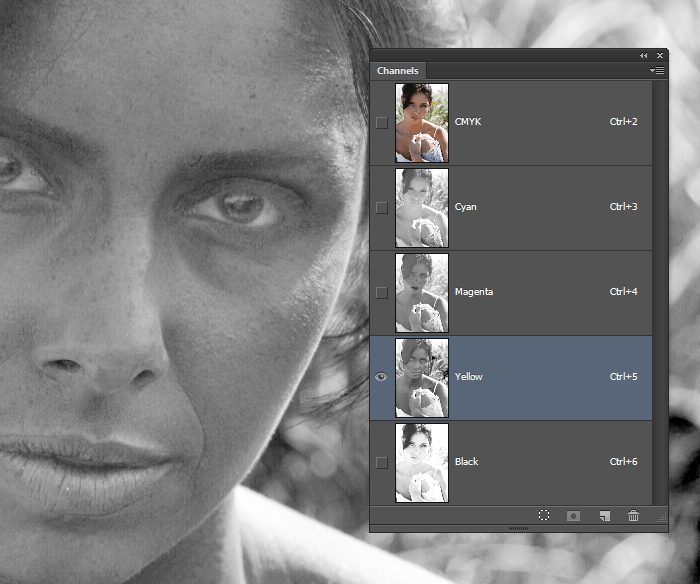
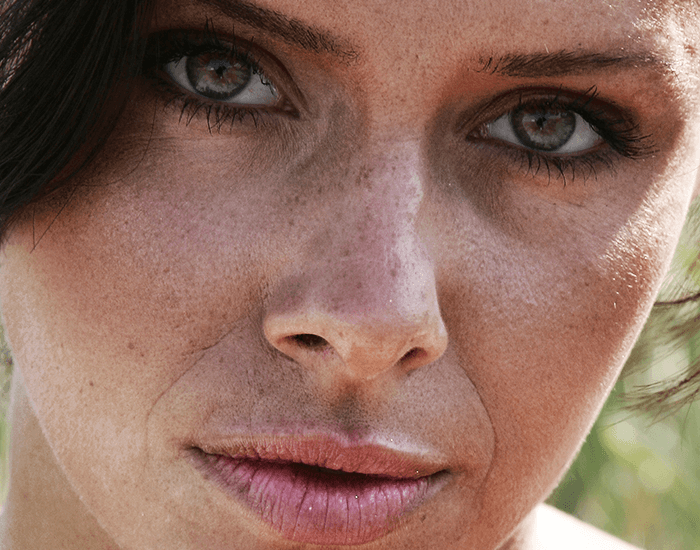
In the Channels palette (Window > Channels), select the Yellow channel. As you can see, the Yellow layer reveals the most skin flaws. Copy and paste this layer by going to Select > All then Edit > Copy.


Step 4

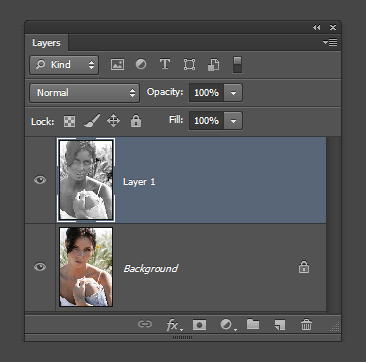
Now we need to convert the image back to RGB mode for editing. Instead of converting the image back, which will degrade the image quality even more, we can just undo all the way back to the beginning. Keep pressing Alt+Ctrl+Z (Option+Cmd+Z on Macs) until you've reverted back to the original photo. Go to Edit > Paste and Photoshop will place the Yellow channel you copied as a new layer.


Step 5

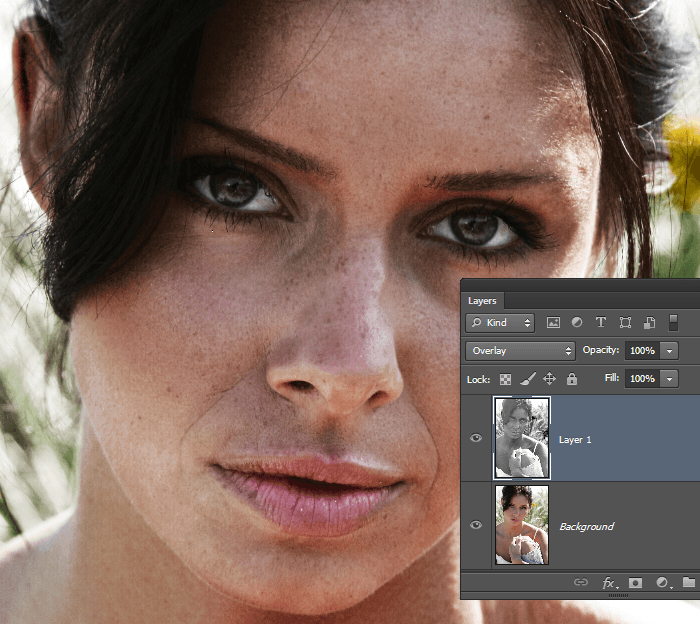
Change the blending mode to Overlay. You'll see the effects immediately and you can reduce the effect by reducing the opacity.


Step 6

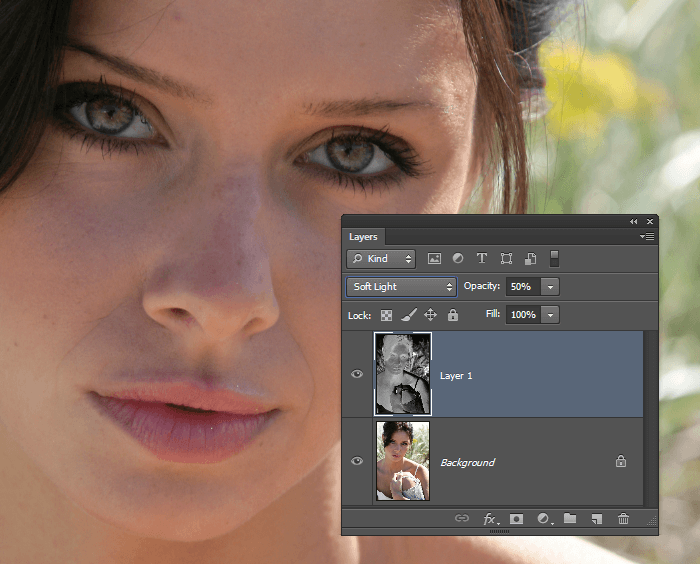
If you want to hide the skin flaws instead of revealing it, invert the layer by going to Image > Adjustments > Invert. Change the blending mode to Soft Light then reduce the opacity until it looks about right.


Step 7

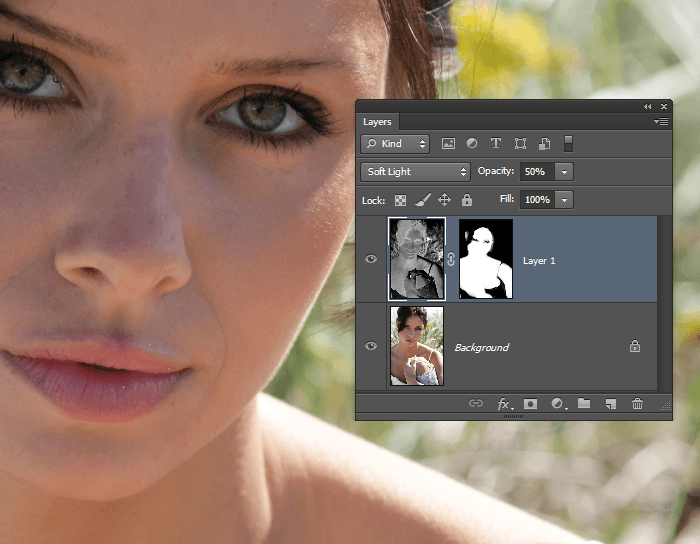
You can also add a layer mask so that this layer only affects the skin tones. This is an optional step because your image will look fine most of the time without any masking. However, should you need to create a layer mask, you can do this by going to Layer > Layer Mask > Hide All. Select the Brush tool (make sure your foreground color is white), then paint with a soft-edge brush around the skin. If you're using Photoshop CS6, you can also use the skin tone feature in the Color Range tool. To do this, go to Select > Color Range. Select "Skin Tones" from the dropdown menu and enable Detect Faces. Click OK and Photoshop will create a selection of the skin tones for you.


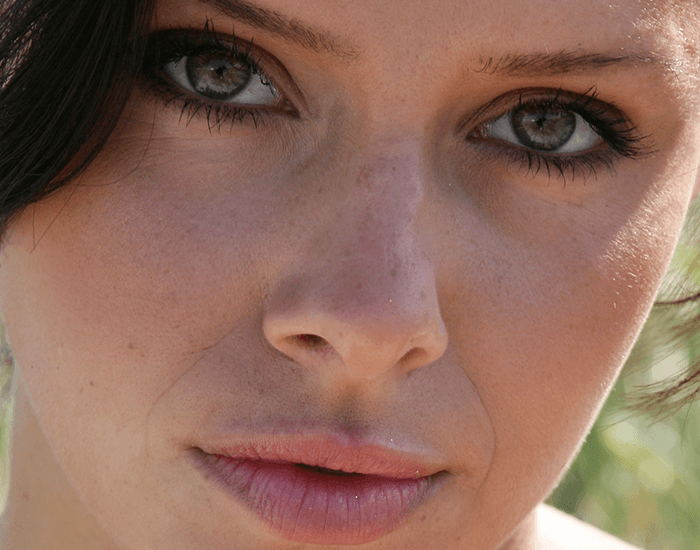
Final Results